
*HIGHLY RECOMMENDED* Watch the tutorial: Navigating ZiFlow: A Comprehensive Overview for Account Managers
What You'll Need Before You Start
1. ZiFlow Login Access Make sure you're logged into ZiFlow before starting. Reach out to your manager if you don't have access yet.
2. Your Sales Rep Assignment Know the initials of the sales reps you support — that's how programs are organized in the sidebar.
3. General Workspace Familiarity Programs live under General Workspace > Team Design > SR (Sales Rep), so it helps to know that path going in.
Navigating the ZiFlow Homepage & Sidebar
When you first log in, the homepage shows all proofs under the All view — this can be hundreds of designs at once.
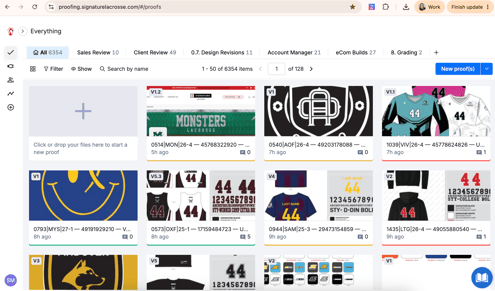
Use the left sidebar to narrow things down:
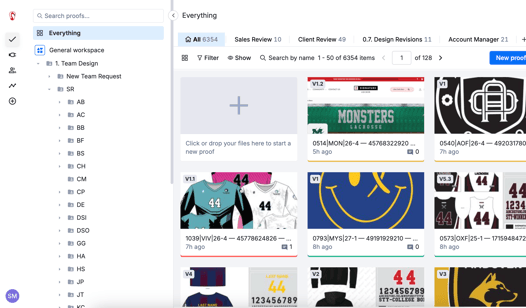
- Under General Workspace, go to Team Design.
- Within Team Design, expand SR (Sales Rep) — every deal and ticket is tied to a sales rep or sales team.
- Find the initials of the sales rep you support (e.g., BS = Bill, CH = Chad, HS = Hope). Some older, inactive reps may still appear — you can ignore those
Finding a Specific Program
To locate a specific program's designs:
- Identify which sales rep the program is under.
- Expand that rep's section in the sidebar and scroll to the program's first letter.
- Click into the program to see its design seasons (e.g., "25-2" = year 2025, design season 2 / Q2).
- Click the season to see all designs tied to that ticket — uniform proofs, team store proofs, vectorized logo proofs, off-menu collections, etc.
Watch out: Make sure the All filter is selected at the top left before assuming a program has no designs. If a different view (like Account Manager) is selected instead of All, designs that exist won't show up — it can look empty when it isn't.
Setting Up a Personalized "My Proofs" View
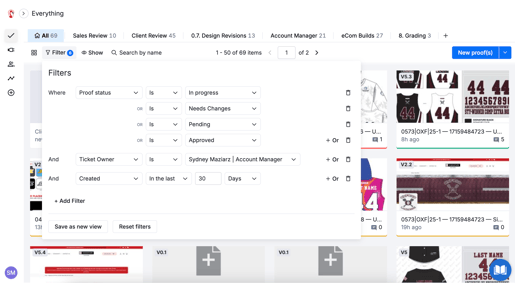
It's helpful to have a saved view showing only proofs you own from a recent time window:
- Click the + sign to create a new view, or clone an existing one via the three-dot menu.
- Set the proof status filter to include: In Progress, Needs Changes, Pending, and Approved.
- Set the ticket owner filter to yourself.
- Choose a time window — most AMs use the past 30 days, but you can adjust to 7, 180, or 365 days.
- Click Save (it may prompt "Save as new view") and label it clearly — most AMs use their initials, since the view is visible to the whole team.
Understanding the Workflow Tabs
Once your general view is set to All, these are the key tabs to know:
|
Tab |
What It Means |
|---|---|
|
Team Design |
Tickets marked "needs changes," or brand-new tickets with no version history yet (shown as "upload"). |
|
Client Review |
Tickets currently with the client for approval or feedback. Current stage shows "design client review." |
|
Account Manager |
Tickets waiting on an AM to take an action (e.g., adding a SKU sheet, QC'ing a team store) before moving forward. |
|
Ecom Builds |
Tickets currently with the Ecom team (e.g., "Add to Team Store," "QC Team Store Build"). |
|
Ready for Sale |
Team stores that are 100% live, plus off-menu collections ready for fulfillment (FE, Sandmar, SNS, etc.). |
|
Ready for Production |
On-menu items headed to production: uniform packages, Signature hats, duffel bags, and other line items. |
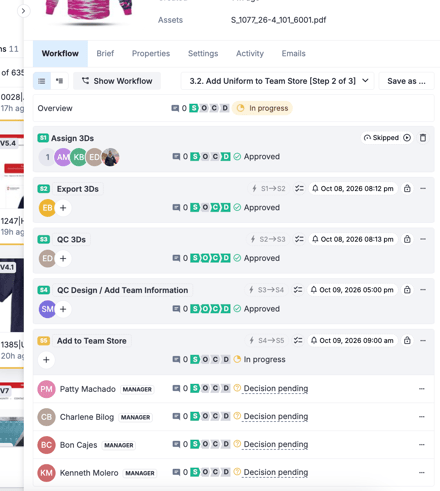
To check where a specific ticket stands, open it and look at the current stage under "in progress" — that tells you which tab it's filed under and who it's waiting on.
Best Practices
- Always confirm the All filter is selected before assuming a program has no designs — the wrong view can hide real proofs.
- Set up your personal "My Proofs" view early so you're not digging through the full queue every day.
- Check the current stage on a ticket before pinging someone — it usually tells you exactly who it's waiting on.
- New to ZiFlow? Spend time poking around past programs and tracing where each proof sits in the workflow rather than changing any stages yourself at first.
LINKS