
Last updated: May 2, 2026
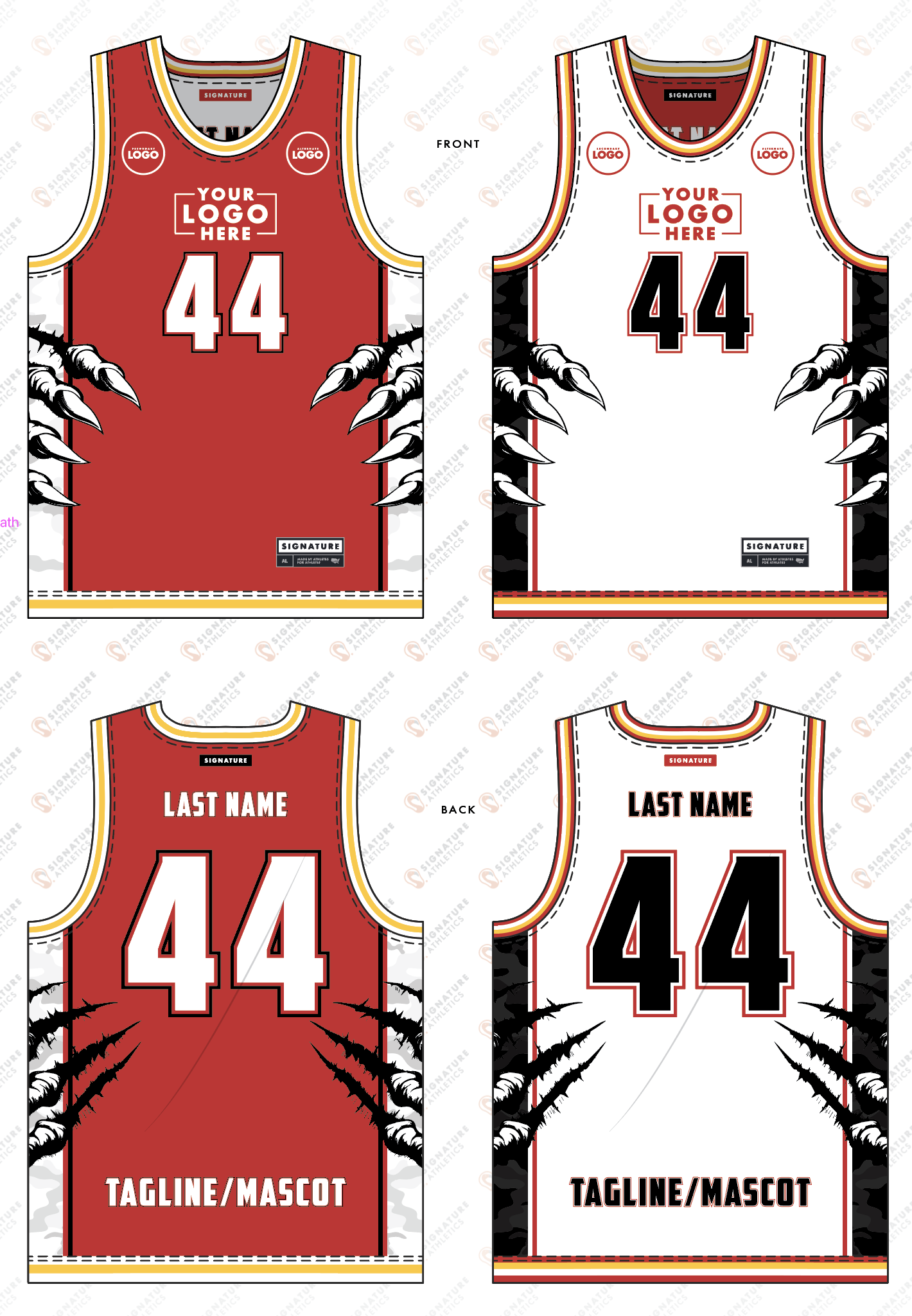
1254|HAH|26-2 — 44869766069 — Uniform Package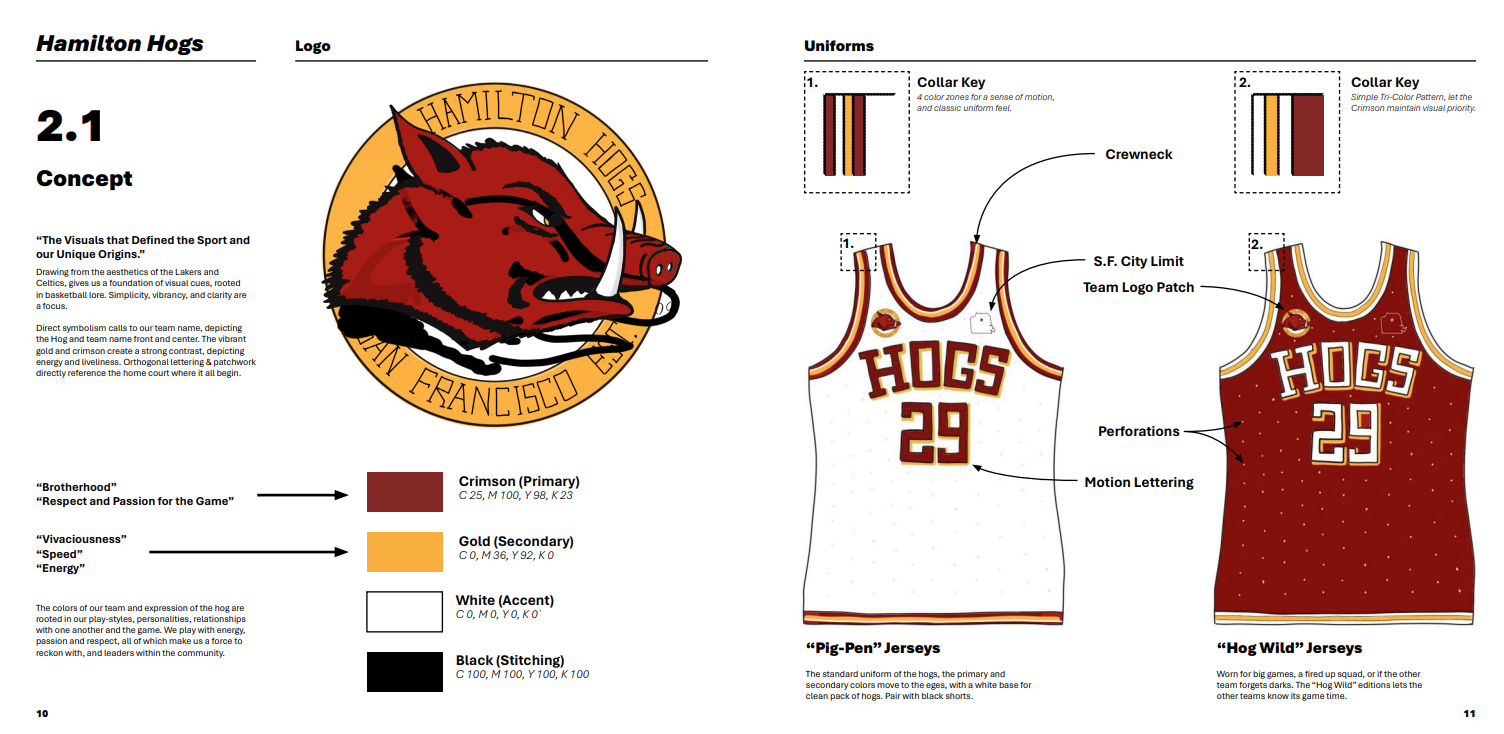
STEP-BY-STEP GUIDE
1. Start with the bottom binding on the front jersey panel 0:14
-
Open the jersey file and go to the bottom binding area.
-
Use Change Color / Appearance to begin editing the binding.
-
Pull the binding out of the symbol/clipping mask so it can be edited directly.
-
The goal is to recreate the dark/light stripe effect on the binding.
2. Build the stripe spacing using guides and stroke math 3:37
-
Set the binding height using guides/measurement lines.
-
The transcript uses a height of 191 as the working reference.
-
Divide the height to determine stripe spacing:
-
For the 3-part version: 191 ÷ 3 = 63
-
Use that to calculate the equal stripe sections.
-
-
Align the stripe elements to the guides so the spacing is even.
3. Reinsert the binding and confirm the front panel look 6:48
-
Bring the edited binding back into the symbol/clipping mask.
-
Turn off arrow indicators if they are showing.
-
Confirm the front binding now has the correct dark/light structure.
-
If the jersey uses a different base color, update the fill to match the correct jersey color.
4. Adjust the production file so the fold sits correctly 9:02
-
In the production file, move the fold down by half so the artwork self-corrects.
-
Make sure the fold color matches the intended base color (the transcript notes it should be white).
-
This ensures the sew lines and fold line behave correctly in production.
-
The front binding setup is now complete.
5. Repeat the bottom binding process for the back panel 10:14
-
Apply the same binding logic to the back.
-
Any change to the production file can shift the 2D panels, so expect to re-align them.
-
Reposition the back panel and restore the 2D panel placement after the production adjustment.
-
The transcript recommends using the Adult Large base size first before adjusting 2D panels.
6. Recreate the second binding style using a 4-part stripe setup 14:02
-
Move to the other binding style and extract the bottom binding again.
-
This version uses a 4-part stripe layout instead of 3 parts.
-
The transcript calculates the spacing using the same height reference:
-
191 ÷ 4 for the smallest stripe section.
-
-
Use the resulting measurements to place the stripe sections evenly.
7. Use graphic styles and symbols to make the stripe system reusable 21:39
-
Set guides to the full height of the stripe area.
-
Use the height math to determine the stripe widths.
-
Build the stripe as a reusable graphic style so it can be applied consistently.
-
The key idea: once the stripe system is built, you can reuse it across front/back and other jersey parts.
8. Set up collar and armhole stripe layers with clear naming 24:04
-
Move to the collar and armhole sections.
-
Duplicate the relevant layers for stripes.
-
Rename layers clearly so each one is easy to identify:
-
Stripe layers
-
Size layers
-
2D / 3D layers
-
-
Remove unnecessary “copy” tags from duplicated layers so the file stays organized.
9. Build the armhole stripes as a symbol-based system 37:18
-
For repeated elements, create a symbol so placement stays accurate.
-
Pull the armhole shapes out of the clipping mask and duplicate them.
-
Create the dark and light versions together so the work only has to be done once.
-
Expand strokes when needed so the shapes can be divided cleanly.
-
Separate the armhole into distinct parts such as:
-
Outside
-
Middle
-
Inside
-
10. Turn the armhole pieces into right/left symbols 50:32
-
Convert the armhole stripe pieces into symbols.
-
Create a right version and then reflect it to make the left version.
-
Re-symbolize each side so the file knows which is which.
-
Place the symbols back into the correct clipping masks.
-
This makes future edits much faster because changing one symbol updates all instances.
11. Apply the same reusable logic to the collar stripes 01:06:25
-
Repeat the same process for the collar.
-
Pull the collar pieces out, group them, and rename them clearly.
-
Build the collar as a reusable stripe system just like the armholes.
-
The transcript notes the collar needs multiple versions, so the symbol approach saves time.
12. Test stripe widths, adjust, and QC the shapes 01:11:30
-
Test the stripe widths to see which measurement fits the shape best.
-
Adjust the height slightly if the stripe is too short or too wide.
-
The transcript repeatedly checks fit by comparing the stripe edges to the shape corners.
-
This is the QC step: confirm the stripe geometry is clean before finalizing.
13. Expand, divide, and separate the final stripe paths 01:39:28
-
Expand the appearance of the stripe paths.
-
Divide the shapes so each stripe section becomes its own editable piece.
-
Move the yellow pieces to the top as needed.
-
Delete any extra paths that are no longer needed.
-
Rename the resulting parts consistently:
-
Outside
-
Middle
-
Inside
-
14. Create the final symbols and apply them to the jersey 01:48:07
-
Turn the cleaned-up stripe pieces into symbols.
-
Go back to the stripe layers and replace the old pieces with the new symbols.
-
Update colors as needed:
-
Base color
-
Yellow
-
White
-
Red, if applicable
-
-
Verify the front and back jersey panels now match the intended stripe design.
15. Final check: confirm the 2D artwork is complete 01:56:19
-
Bring the front and back into view and hide the background if needed.
-
Check that the stripes, inside colors, and outer colors all look correct.
-
Take a screenshot for reference.
-
The transcript ends by noting that the 2D process is complete, though production artboards still need to be handled separately.