
Last updated: March 5, 2026
TRACKER | QR CODE | STEP 1 | STEP 2 | STEP 3
Introduction
This guide provides a thorough, step-by-step process for designers to update Signature Locker styles by replacing the old locker tag with the new QR Code version or adding it where missing. The update applies to 86 styles (43 Men's, 32 Women's, and 11 Unisex), divided among 9 designers for efficiency.
We use Adobe Illustrator for this task, working with master files in Google Drive folders. The process involves tracking your assignments, downloading the new QR Code tags, updating master files, and uploading the revised versions. Always work on a new version of the master to preserve history.
Prerequisites:
-
Access to the Signature Locker Tag Tracker Google Sheet.
-
Access to Google Drive folders: 3. Uniforms, Signature Styles LIVE Master, Men's Package, & Women's Package.
-
Adobe Illustrator installed and familiarity with symbols, layers, and file versioning.
-
Download the new QR Code tags from the provided source file: 1004|SLR|25-4 - 36898868550 - SL Locker Tags.
Key Notes:
- There are four tag types: Two PRO (for PRO styles) and two Player (for all others).
- Use the correct tag type to avoid errors in production.
- This is a major update, so always create a new version folder (e.g., from v2 to v3).
- Update the Tracker at each stage to avoid overlaps or missed styles.
- If a master lacks certain structures (e.g., version symbols), add them from a reference master.
Review/Skim through Video before starting your batch in 2x Speed!
TRACKER | QR CODE | STEP 1 | STEP 2 | STEP 3
Section 1
USING THE TRACKER
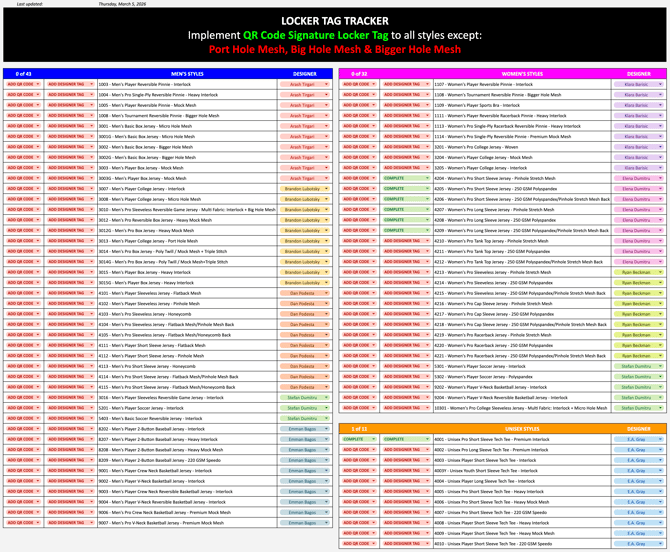
The Tracker helps assign and monitor progress. It's a shared Google Sheet where you claim styles and update statuses.
-
Open the Signature Locker Tag Tracker.
-
Locate your assigned styles (e.g., by designer name or column).
-
For each style you start:
-
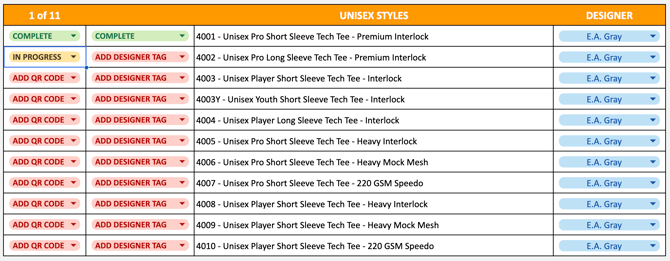
Change the status from ADD QR CODE to IN PROGRESS.
-
-
As you complete styles:
-
Change the status from IN PROGRESS to COMPLETED.
-
Update the progress counter (e.g., from 0 of 32 to 1 of 32).
-
-
Refresh the sheet periodically to see team progress and avoid conflicts.
Tips for Clarity:
- Aim to complete your assigned styles in batches to maintain momentum.
TRACKER | QR CODE | STEP 1 | STEP 2 | STEP 3
Section 2
PREPARING THE QR CODE TAGS
Download and understand the new tags before updating masters.
1004|SLR|25-4 - 36898868550 - SL Locker Tags |
DOWNLOAD |
||
 |
 |
||
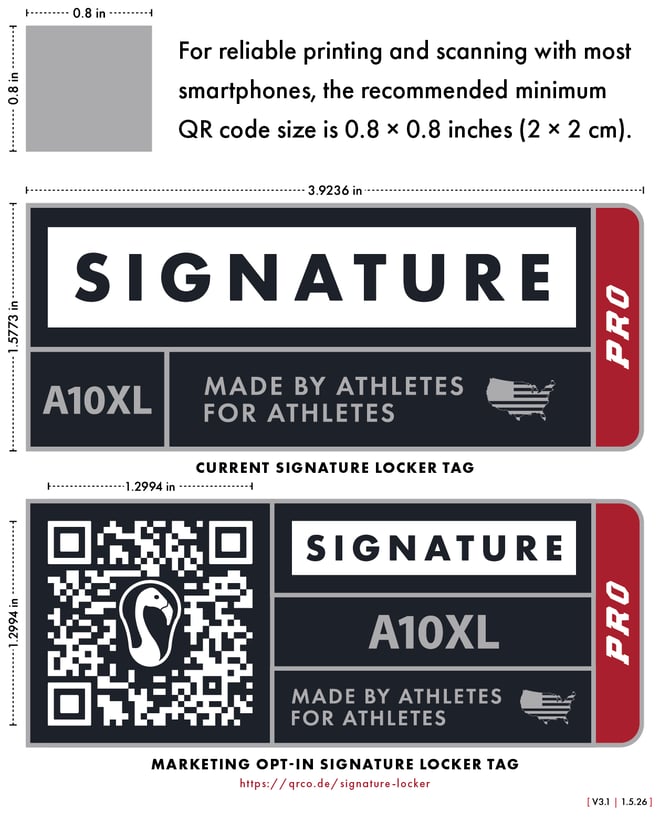
PRO Locker Tag |
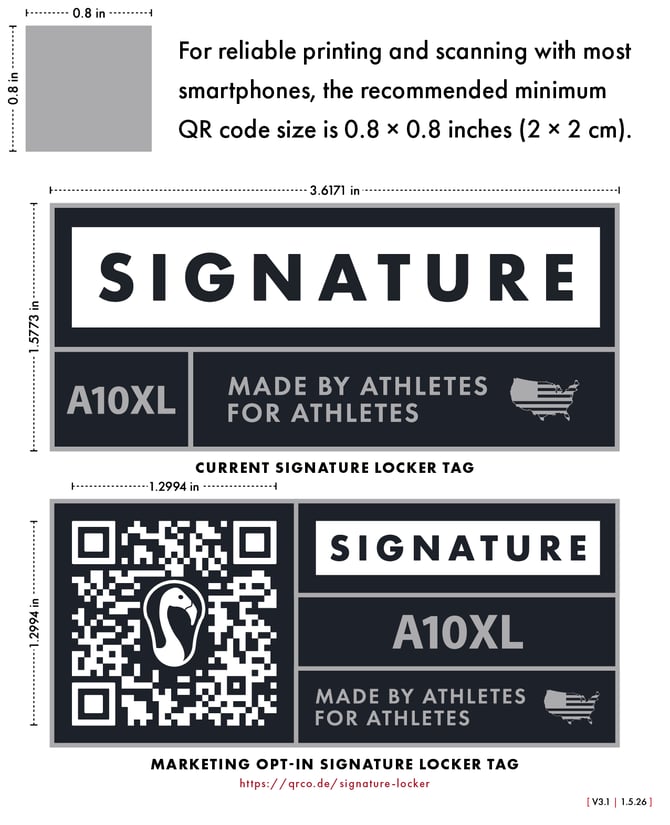
Player Locker Tag |
||
We have 4 Locker Tag Types 2 PRO Types and 2 Player Types:
-
Ensure you use the PRO Tag on all of the PRO Styles
-
Use Player Tag for all the other Styles.
- Download Tags
- Open Tags
Symbol Structure & Nomenclature
- Locker Tag
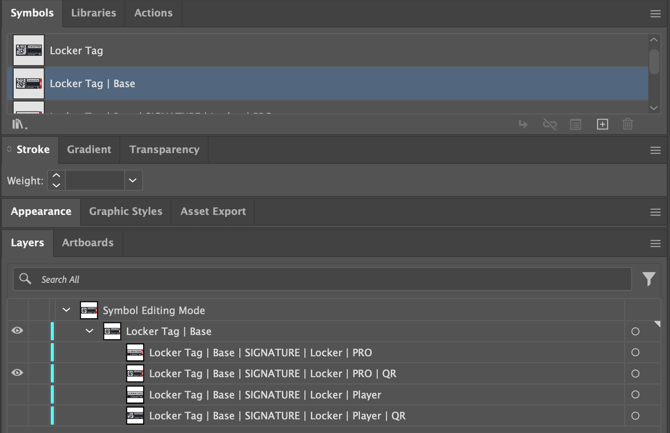
- Locker Tag | Base
- Locker Tag | Base | SIGNATURE | Locker | PRO
- Locker Tag | Base | SIGNATURE | Locker | PRO | QR
- Locker Tag | Base | SIGNATURE | Locker | Player
- Locker Tag | Base | SIGNATURE | Locker | Player | QR
- Locker Tag | Base
- Locker Tag | Size | Font
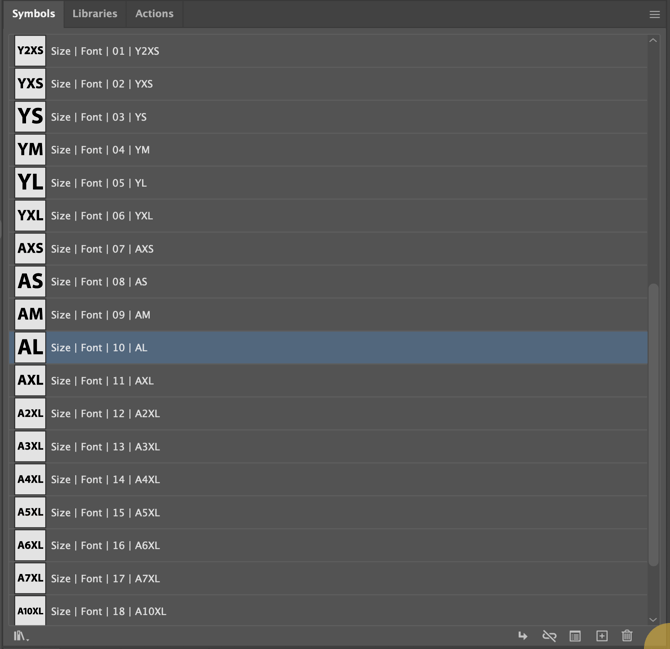
- Size | Font | 01 | Y2XS
- Size | Font | 02 | YXS
- Size | Font | 03 | YS
- Size | Font | 04 | YM
- Size | Font | 05 | YL
- Size | Font | 06 | YXL
- Size | Font | 07 | AXS
- Size | Font | 08 | AS
- Size | Font | 09 | AM
- Size | Font | 10 | AL
- Size | Font | 11 | AXL
- Size | Font | 12 | A2XL
- Size | Font | 13 | A3XL
- Size | Font | 14 | A4XL
- Size | Font | 15 | A5XL
- Size | Font | 15 | A5XL
- Size | Font | 16 | A6XL
- Size | Font | 17 | A7XL
- Size | Font | 18 | A10XL
- Locker Tag | Size | Panels | All Symbols are based off the AL Structure
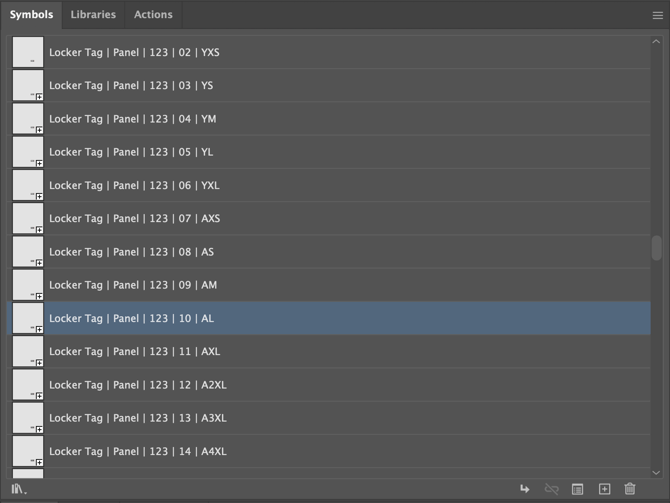
- Locker Tag | Panel | 123 | 01 | Y2XS
- Locker Tag | Panel | 123 | 02 | YXS
- Locker Tag | Panel | 123 | 03 | YS
- Locker Tag | Panel | 123 | 04 | YM
- Locker Tag | Panel | 123 | 05 | YL
- Locker Tag | Panel | 123 | 06 | YXL
- Locker Tag | Panel | 123 | 07 | AXS
- Locker Tag | Panel | 123 | 08 | AS
- Locker Tag | Panel | 123 | 09 | AM
- Locker Tag | Panel | 123 | 10 | AL
- Locker Tag
- Size | Font | 10 | AL
- Locker Tag
- Design Box
- 12x16 or 10x16 White Dashed Line Box
- 2px Weight
- 12px Dash
- 12px Gap
- Centered at X:0 in Y:0 in
- 12x16 or 10x16 White Dashed Line Box
- 1D | Panel | AL
- V5.0 | BASE | Registration | 01 | Front
- Panel | 0000 | 1D | 11 | AL | Front | 1 | Cut
- Panel | 0000 | 1D | 11 | AL | Front | 2 | Sew
- Panel | 0000 | 1D | 11 | AL | Front | 3 | Base
- V5.0 | BASE | Registration | 01 | Front
- Locker Tag
- Locker Tag | Panel | 123 | 11 | AXL
- Locker Tag | Panel | 123 | 12 | A2XL
- Locker Tag | Panel | 123 | 13 | A3XL
- Locker Tag | Panel | 123 | 14 | A4XL
- Locker Tag | Panel | 123 | 15 | A5XL
- Locker Tag | Panel | 123 | 16 | A6XL
- Locker Tag | Panel | 123 | 17 | A7XL
- Locker Tag | Panel | 123 | 18 | A10XL
TRACKER | QR CODE | STEP 1 | STEP 2 | STEP 3
Section 3
STEP 1: Setting Up the New Master File
3. MASTER DESIGN / 1004 — Signature Locker / 3. Uniforms
Locate the style's folder and create a new version.
- Navigate to the 3. Uniforms folder, then to the line type (e.g., 3. Pro Line > 4000's > Style 4001).
- Check the latest version folder (e.g., v2).
- Verify the master file matches the one in the Signature Styles LIVE Master folder.
- Create a new version folder (e.g., v3 if previous is v2).
- Duplicate the latest master file into the new folder.
- Rename the file to update the version (e.g., from "4001 - U Pro SS Tech Tee (Dark) v2.0" to "v3.0").
- Open the new master file in Adobe Illustrator.
Tips for Clarity:
- Versioning prevents overwriting old files — always duplicate, don't move.
- If the master is outdated compared to LIVE, update it first before duplicating.
TRACKER | QR CODE | STEP 1 | STEP 2 | STEP 3
SECTION 4
STEP 2: Updating the Master File
Make changes to info, versions, nomenclature, and add the QR Code tag.
- Update Client Info Box:
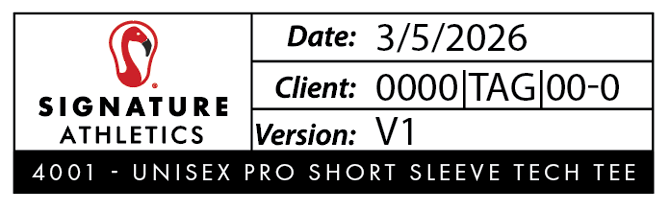
- Change the date to today's date (e.g., March 5, 2026).
- Update Version Symbol (V5.0 | BASE | Version Symbol):
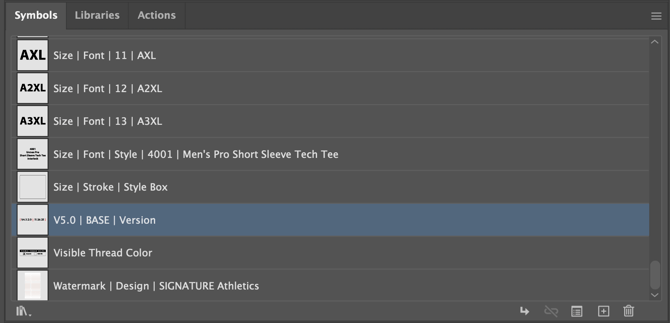
- [ V4.3.3.0 | 3.5.26 ]
- [ Version-ID.1-2-3Ds.Major_Verison-ID.Minor_Verison-ID | M.D.YY ]
- If missing, add it from a reference master.
- Update the version ID (e.g., from V4.3.2.0 to V4.3.3.0).
- Change the date to today's date (e.g., 3.5.26).
- [ V4.3.3.0 | 3.5.26 ]
- Update Nomenclature:
- Top Layer | SL Player Locker Tags | LOCKED
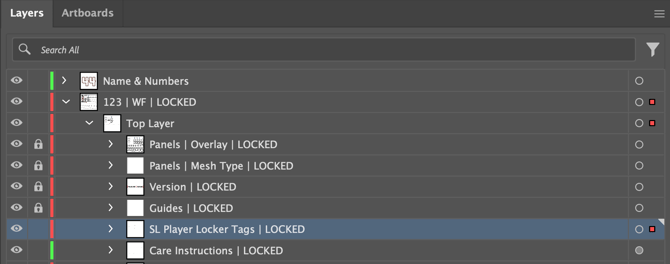
- Change the Layer Name to Locker Tags | LOCKED
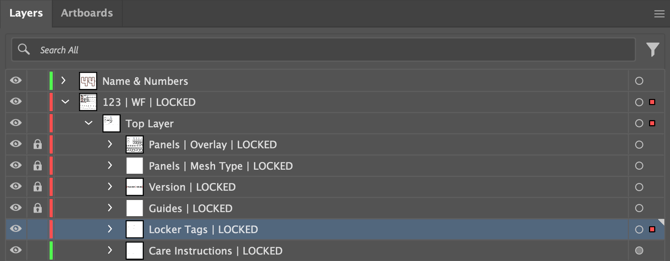
- Change the Layer Name to Locker Tags | LOCKED
- Locker Tag Symbol | SL PRO Locker Tag - AL or SL Player Locker Tag | 10 | AL
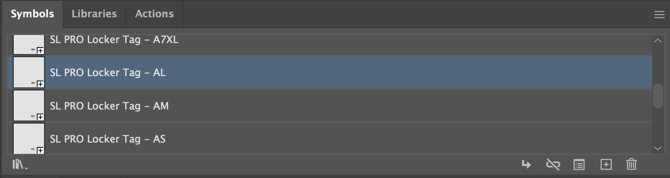
- Change the Symbol Name to Locker Tag | Panel | 123 | 10 | AL
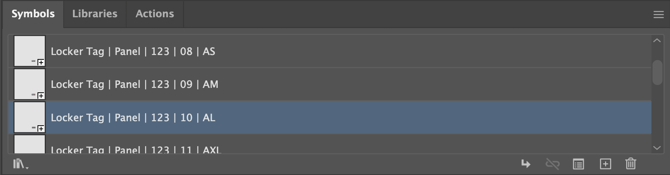
- Change the Symbol Name to Locker Tag | Panel | 123 | 10 | AL
- Top Layer | SL Player Locker Tags | LOCKED
- Add/Replace QR Code Locker Tag:
- Copy the Locker Tag QR Code symbol from the 1004|SLR|25-4 - 36898868550 - SL Locker Tags file.
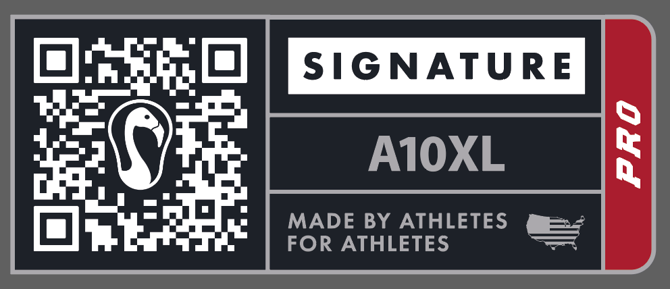
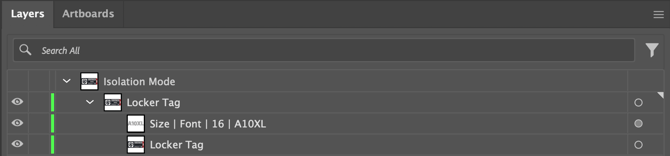
- Paste it into the "Locker Tag | Panel | 123 | 10 | AL" symbol in the master.
- Assign the PRO Base for PRO Styles
- Assign the Player Base for all other Styles in the Locker Tag Symbol from the Symbol Dropdown
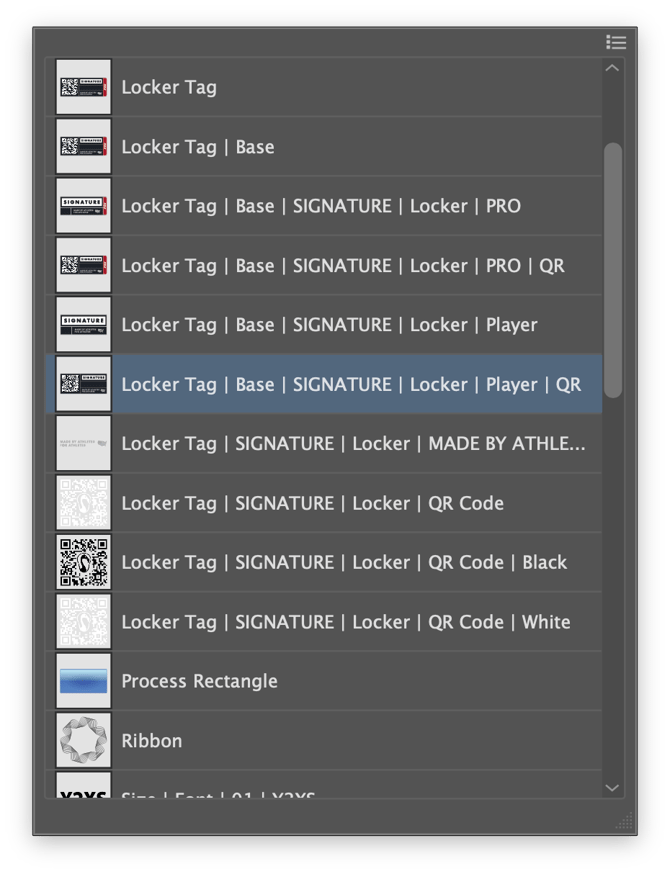
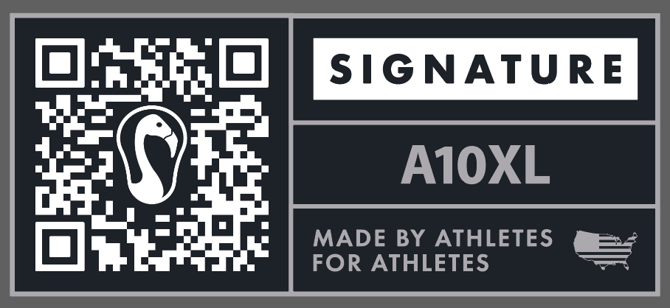
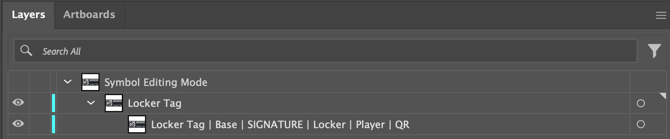
- Align it with the old tag's position (starting at X: 5 in, Y: 11.1377 in).
- Delete the Old SL Player Locker Tag.
- Delete the Old Symbols
- SL Player Locker Tag | Base
- SL Player Locker Tag | Base | SIGNATURE | PRO
- SL Player Locker Tag | Base | SIGNATURE | Player
- SL Player Locker Tag | MADE BY ATHLETES
- Rename Symbols
- Locker Tag | Base | SMACK | PRO
- Locker Tag | Base | SMACK | Player
- Locker Tag | MADE IN THE USA
- Repeat for all sizes, checking alignment (adjust left/right/top/bottom if inconsistent).
- Copy the Locker Tag QR Code symbol from the 1004|SLR|25-4 - 36898868550 - SL Locker Tags file.
- Optional: Add Missing Structures:
- If any Locker Tag Symbols size lacks the "Locker Tag | Panel | 123 | 10 | AL" structure, add it based on the AL template.
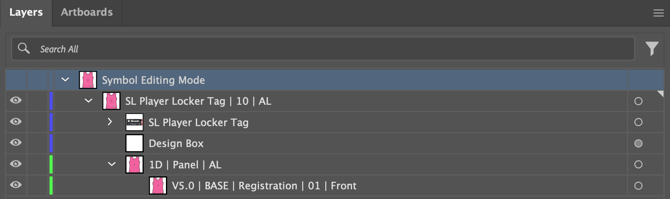
- If the Locker Tag | Size | Font Symbols are missing Copy & Paste into New Master.

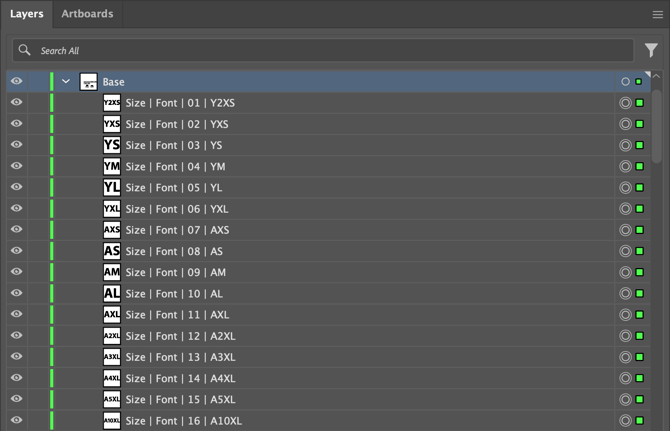
- If any Locker Tag Symbols size lacks the "Locker Tag | Panel | 123 | 10 | AL" structure, add it based on the AL template.
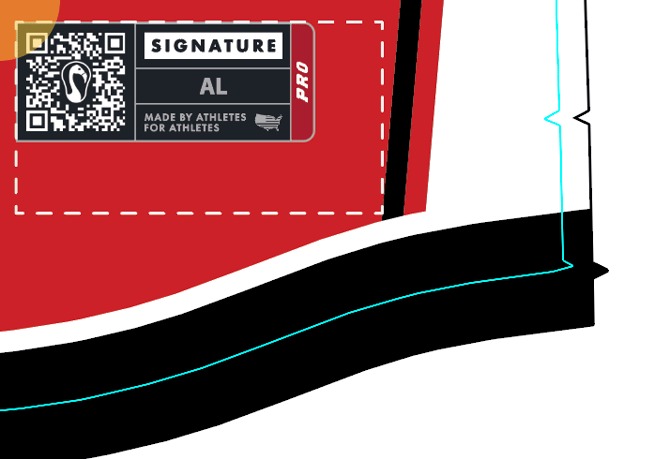
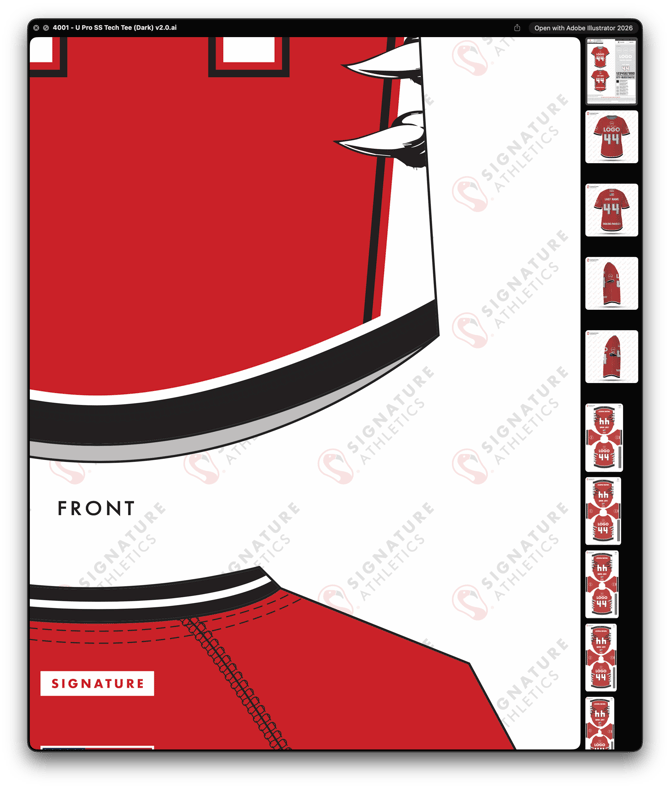 |
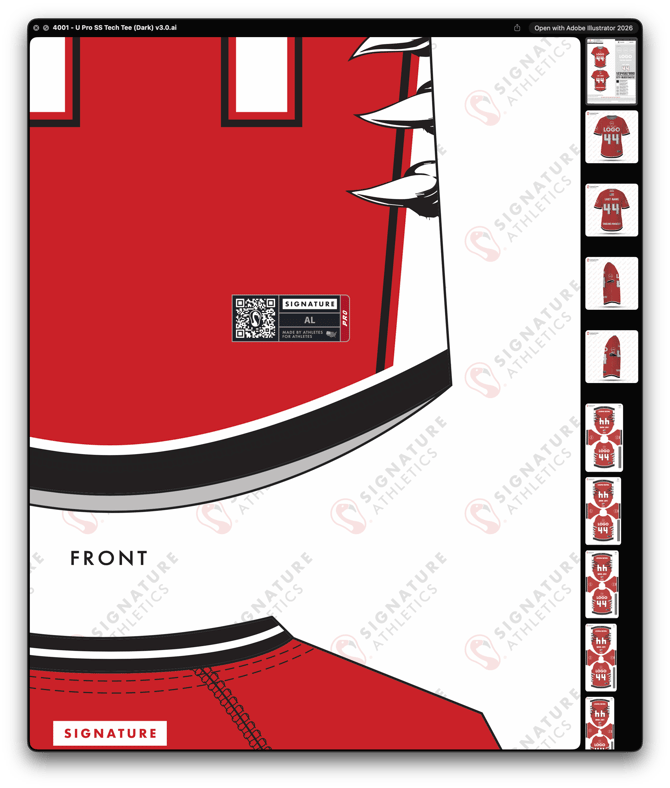 |
Tips for Clarity:
- Lock layers after editing to prevent accidental changes.
- Zoom in for precise alignment — use guides or the Align panel.
TRACKER | QR CODE | STEP 1 | STEP 2 | STEP 3
SECTION 5
STEP 3: Exporting & Uploading
Finalize and share the updated master.
- Relock all "LOCKED" layers.
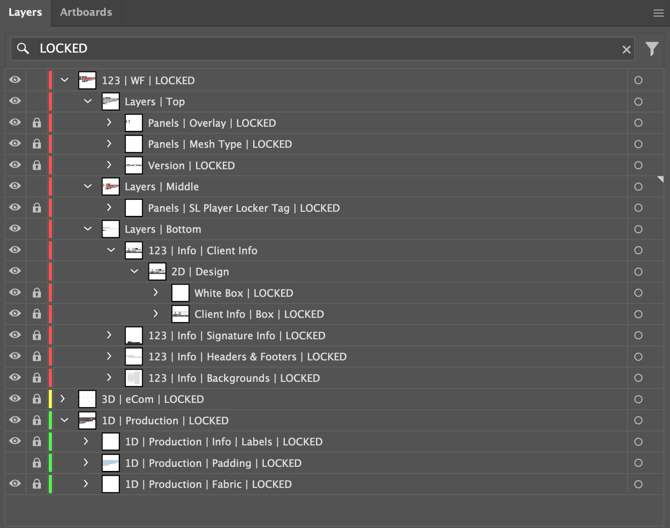
- Collapse all layers for a clean file.
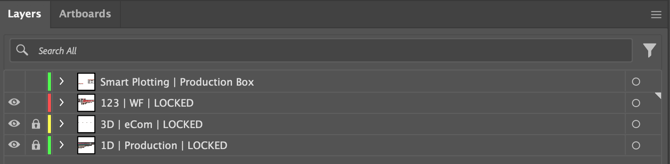
- Save the master file.
- Duplicate it and rename without the version ID (e.g., "4001 - U Pro SS Tech Tee (Dark)").
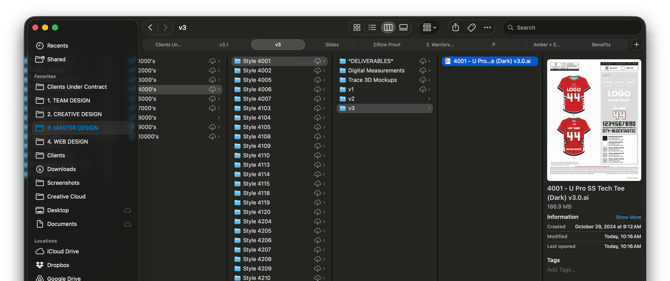
- Replace the old master in the Signature Styles LIVE Master folder:
- For Men's: Men's Package.
- For Women's: Women's Package.
- For Unisex: Both Package Folders
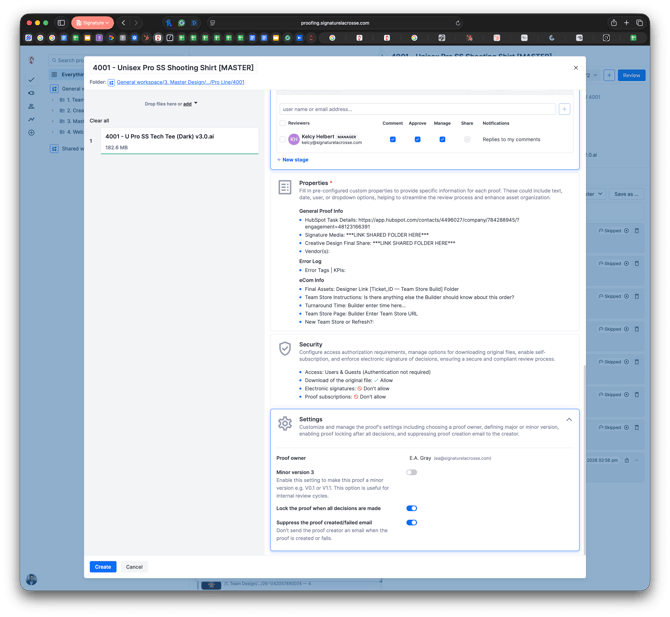
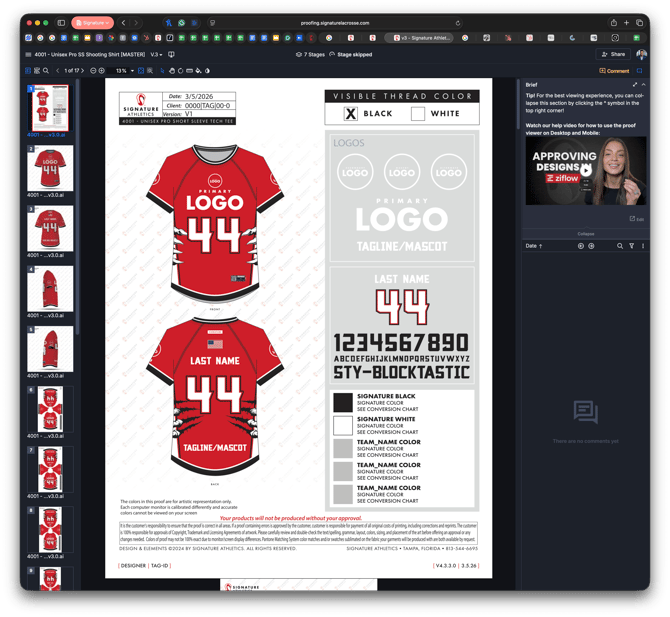
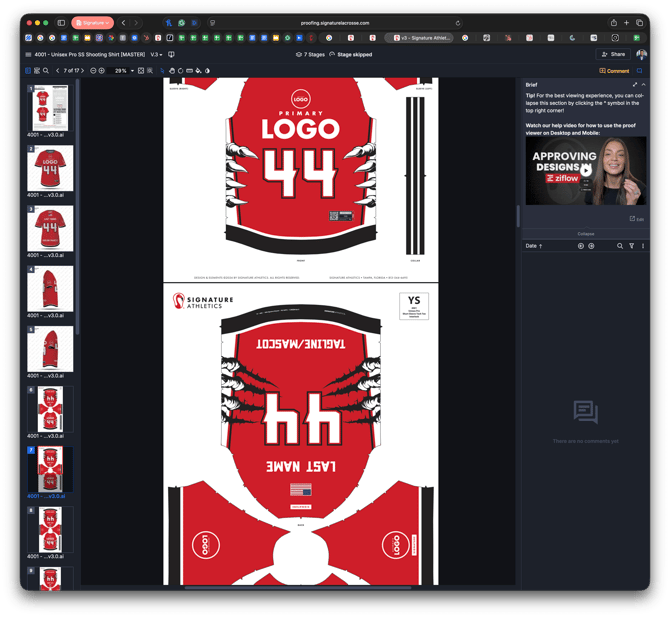
- Upload the Versioned (e.g., "4001 - U Pro SS Tech Tee (Dark) v3.0" to Ziflow (e.g., "4001 - Unisex Pro SS Shooting Shirt [MASTER] Proof").
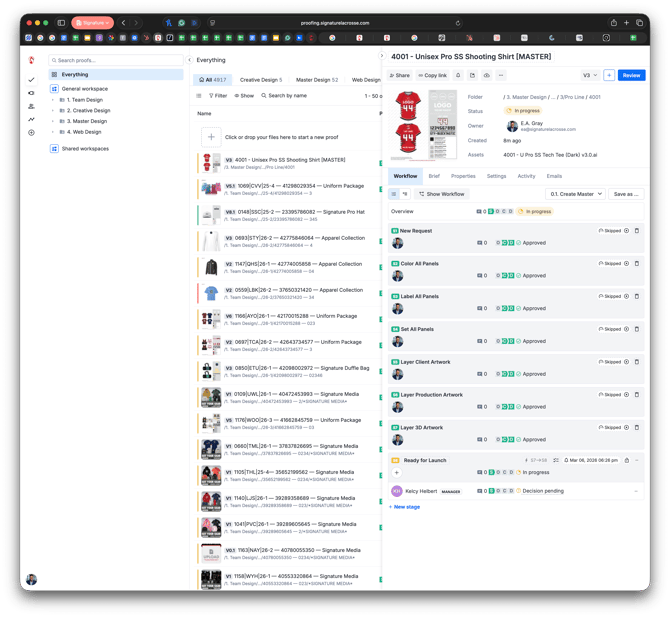
- Update the Tracker: Status to COMPLETED and increment the counter.
- Repeat for your next assigned style until all are done.
Tips for Clarity:
- Double-check file names to avoid confusion in LIVE folders.
- If issues arise (e.g., alignment errors), revert to the saved version and retry.
- Notify the team lead upon completing all your styles.
Conclusion
This process ensures all styles are updated consistently with the new QR Code tags. By following these detailed steps, you'll minimize errors and improve efficiency. Once complete, the entire collection will be ready for production.
If you encounter issues (e.g., missing access or file mismatches), contact the E.A. immediately.
[Insert Video Here: Full Walkthrough Demo with Screen Recording]