
Last Updated: May 13, 2026
PURPOSE | OVERVIEW | STEP-BY-STEP | HELP?
PURPOSE
This tracker is your personal learning and planning hub for managing Quarterly, Monthly, and Weekly Rocks. It is designed to help you understand how to set clear goals, monitor your progress with a business-day schedule, interpret automatic progress updates, and apply smart status indicators so you can build strong habits in focus, accountability, and follow-through.
OVERVIEW
The tracker is built in Google Sheets with 6 tabs:
-
📋 How To Use – Instructions and best practices
-
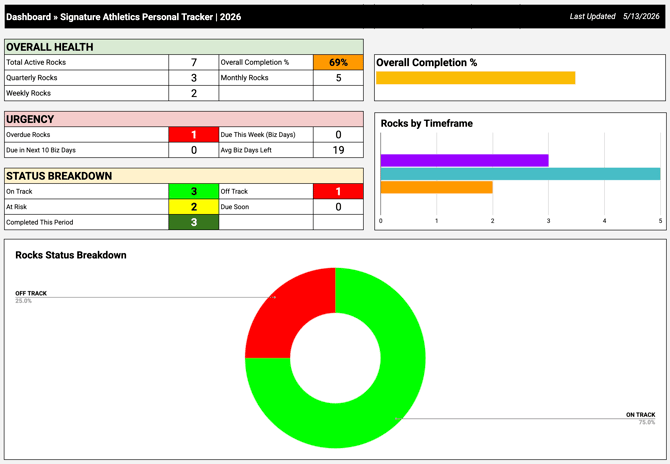
📊 Dashboard – Real-time summary, charts, and progress overview
-
🪨 All Rocks – Main working tab where you add/edit everything
-
🪨 Quarterly Rocks – Auto-filtered view
-
🪨 Monthly Rocks – Auto-filtered view
-
🪨 Weekly Rocks – Auto-filtered view
It automatically calculates % complete, business days left, and status (🟢 On Track / 🟡 At Risk / 🟠 Due Soon / 🔴 Overdue / ✅ Done).
STEP-BY-STEP GUIDE
-
Make A Copy of The Template
Begin by opening the Master Template. Go to File → Make A Copy. Rename your copy so it is clearly identifiable, for example:
“John Smith’s Personal KPI & Rocks Tracker 2026.”
This step teaches you to create your own working version without changing the original. -
Replace the Placeholder Rocks
Navigate to the All Rocks tab. Delete or overwrite the example rows with your own real rocks.
By doing this, you practice translating general examples into specific, measurable goals that match your priorities. -
Update the Current column every week
Once a week (Sunday or Monday is recommended), update the Current column for each rock.
This weekly habit helps you learn to track progress consistently, notice trends over time, and adjust your effort before small issues become larger problems. -
Review the Dashboard
Look at the Dashboard tab each week to see your overall health and urgency.
The charts and summaries show you how your rocks are progressing, which teaches you to read performance data and connect it to your daily actions. -
Always start at the beginning of each week
Focus first on any rocks marked Overdue or Due Soon.
This approach helps you learn to prioritize tasks based on urgency and impact rather than convenience.
Key Rules
-
Be honest with your Current numbers
-
Accurate numbers give you accurate feedback. This teaches you how honest self-assessment leads to better decisions and real improvement.
-
Use placeholder examples only as inspiration
-
Examples are there to spark ideas, not to copy directly. This helps you learn how to adapt good practices to your own goals.
-
Delete rows you do not need
-
Removing unused rows keeps the tracker simple and focused. This teaches you to reduce clutter so your attention stays on what truly matters.
-
Add new rocks as needed
-
As your responsibilities change, add new rocks to reflect them. This helps you learn to update your plan as your season, role, or priorities evolve.
Best Practices
-
Review every Sunday evening
-
A short review at the end of the week helps you reflect on what worked, what did not, and what to change. This builds a regular reflection habit that supports continuous improvement.
-
Keep the Notes / Next Actions column updated
-
Use this column to record what you learned, key obstacles, and the very next action to take. This trains you to turn insights into specific steps.
-
Celebrate when you hit 100% ✅
-
When a rock reaches 100%, pause to recognize what helped you succeed. This teaches you to study your own wins so you can repeat them.
-
Remember what Biz Days Left means
-
Biz Days Left counts only Monday–Friday. This helps you understand how much focused working time you truly have and encourages realistic planning.
Pro Tip
Aim to have 3–5 active rocks at any time. Keeping your active list small teaches you that concentrating on fewer, high-quality goals leads to stronger results than spreading your energy across too many priorities.
Rock ID System Explained
| Item | Rule | Example |
| Prefix | W = Weekly, M = Monthly, Q = Quarterly | M05, W21, Q2 |
| Quarter / Month / Week | Based on when the rock is created / assigned | May = 05 |
| Sequential Number | Starts at 001 and increases throughout the year | -001, -002 |
| When it resets | Every new year (create a new sheet in 2027) | — |
Examples:
-
Quarterly rock created in April 2026 → Q2-001
-
Monthly rock created in May 2026 → M05-001
-
3rd Weekly rock in Week 21 → W21-003
Tip: Don’t overthink the number. Just go in sequential order for each type (Q, M, W).
Tab Breakdown
-
📋 How To Use – Full instructions (you are here)
-
📊 Dashboard – Summary metrics, charts, and overall health
-
🪨 All Rocks – Main tab. Add, edit, and update all your rocks here
-
🪨 Quarterly Rocks – Auto-filtered view of Q rocks
-
🪨 Monthly Rocks – Auto-filtered view of M rocks
-
🪨Weekly Rocks – Auto-filtered view of W rocks
How to Share the Tracker with Your Direct Manager
-
Make your own copy (File → Make a copy)
-
Rename it clearly (e.g., “John Smith’s Personal KPI & Rocks Tracker 2026”)
-
Click Share (top right) → Add your manager’s email → Give them “Commenter” or “Viewer” access
- Send them the link with a short note explaining what it is
Need Help?
If you have any questions or run into issues:
-
Message E.A. on Slack
-
Or schedule a quick 1:1 directly here:
Book 15-min Tracker Help Session with E.A.
✅ COMPLETED