
Last Updated: May 14, 2026
PURPOSE | OVERVIEW | STEP-BY-STEP | HELP?
PURPOSE
The Master Team Tracker is your official learning and working system for managing all Signature Locker Masters. Instead of using several separate spreadsheets, this tracker brings everything into one organized place so you can clearly understand how work moves from start to finish.
Using the tracker, the entire team (Design, Production, Tech Pack, QC, and others) can quickly see and learn:
-
Where each Master sits in the 8-stage workflow
-
Who is responsible for each stage and why that ownership matters
-
How to read real-time progress and status (On Track, At Risk, Off Track)
-
When each Master is due and how timing affects project health
By working in this shared system, you build strong project habits: tracking work by stage, updating status honestly, and planning around clear due dates. The overall goal is to deliver every Master on time, at high quality, with no last-minute surprises.
ROLES & RESPONSIBILITIES
| Column | Role / Responsibility |
Primary Owner(s)
|
| 3D Setup | 3D artboard setup and symbol replacement |
Elena Dumitru / Klara Barisic
|
| 2D Client Sheet | Client-facing technical flat sketches | Ryan Beckman |
| 1D Production | Production-ready print files (all sizes graded) |
Elena Dumitru / Klara Barisic
|
| Digital Measurements | Capture digital measurements from sew lines | Stefan Dumitru |
| 3D eCom | 3D mockups for e-commerce | Dan Podesta |
| Tech Pack | Full 4-page tech pack with sewing instructions |
Brandon Lubotsky
|
| Size Chart | Create and update size charts | Luka Bašić |
| QC | Final quality control and approval | E.A. Gray |
BEST PRACTICES
-
Update daily — Treat the tracker as a living record. As soon as your stage is complete, mark it in the tracker so others can learn exactly where the work stands and avoid duplicate effort.
-
One source of truth — Always pull the latest file from the Master Folder. This teaches consistent file habits and prevents errors that come from people working on outdated versions.
-
Be accurate — Choose the correct status (Done, In Progress, Ready for Review, Revisions Needed, Failed QC, etc.). Using these labels correctly helps the whole team read progress, spot blockers, and understand what needs attention next.
-
Use Base Pattern — Always reference the Base Pattern field. This shows which styles share the same base (for example, 1003) and helps everyone understand where work can be reused instead of recreated.
-
Do not delete rows — If a style is discontinued, change the Master Status to “Discontinued” instead of removing the row. This keeps a full historical record so the team can see past decisions and avoid rebuilding old work.
-
Review every Monday — Plan to review the Dashboard together as a team at the start of each week. This builds a habit of checking project health, aligning priorities, and learning where risk is increasing or decreasing.
-
Focus on quality — Remember that accuracy across all 8 stages matters more than pure speed. The tracker is a tool for learning how to deliver work that is consistent, complete, and ready for production the first time.
Pro Tip:
Think of each Master as a complete learning cycle that passes through all 8 stages. When you focus on quality and consistency at every stage, you reduce rework, protect production timelines, and create reliable standards for future styles. Speed only helps if the work is correct, so the priority is to deliver every Master 100% complete, on time, and ready to perform without issues.
Designer Feedback | Ticket Difficulty
OVERVIEW
This Loom explains how to use the new Master Team Tracker, which is designed to be the single source of truth for all signature locker masters from the 3D setup stage through final quality control (QC).
The tracker replaces and consolidates the previous migration and Smack Sports Development trackers into one system. By doing this, it gives the team real‑time visibility across eight different roles, with clearly defined ownership at each stage. All status updates happen in the “rock” tab, where work is tracked using standardized stage statuses such as: not started, in progress, needs revisions, blocked, and done. Learning these categories and using them consistently helps everyone understand exactly where each master stands.
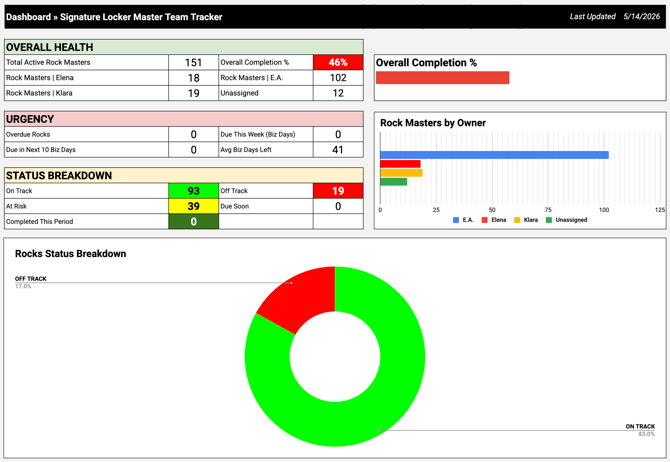
The Loom also introduces the review dashboard, which is meant to be checked every Monday morning. This dashboard is a teaching tool for understanding overall project health. It summarizes work as on track, off track, or at risk and shows how many masters fall into each category. In the example shown, there are 59 total masters, with data such as: 40 percent on track, 59 percent off track, 19 off track, 27 at risk, and 13 on track, and an average of 11 business days remaining. These numbers demonstrate how to read the dashboard and interpret the health of the pipeline at a glance.
A key learning from the Loom is the importance of accurate and honest updates. Team members are encouraged to prioritize red and yellow items (off track and at risk) and to track due dates carefully against a firm timeline. This approach teaches consistent project management habits: always reflect reality in the tracker, focus attention where risk is highest, and use due dates to guide daily and weekly priorities.
STEP-BY-STEP GUIDE
1. Why this new tracker exists 0:00
- The team is introducing a new master team tracker to become the main hub and “single source of truth.”
- It combines multiple existing trackers into one place.
- The goal is to simplify tracking, improve accountability, and make it easy to see whether work is on-track, off-track, or at-risk.
- It also adds a hard due date focus so the team can answer the key question: When is this due?
2. What problem it solves 0:14
- The team currently has separate trackers for:
- migration/status tracking
- top 60 styles
- Smack Sports development / baseball styles
- These separate sheets make it harder to:
- know who owns what
- see progress across stages
- identify blockers
- hold people accountable
- The new tracker brings all of that together in one centralized system.
3. What the tracker is for 1:17
- The tracker is designed as a single source of truth for all signature locker masters.
- It tracks work from 3D setup through final QC.
- It gives visibility across all eight roles/stages.
- It shows:
- clear ownership
- real-time status
- overall project health
- The end goal is to deliver every master on time and with zero issues.
4. How to update the tracker 2:00
- All updates happen in the Rock tab.
- Each person updates their assigned stage columns as work progresses.
- Typical status updates include:
- In progress
- Done
- Needs revisions
- Blocked
- Most updates will usually be simple: in progress and then done.
- The team will review progress during design kickback calls.
5. How completion is calculated 2:39
- The overall completion column updates automatically.
- As statuses change from not started to active work and then done, the tracker calculates progress.
- When everything is complete, the tracker shows 100% done.
- This gives the team a quick view of how close each master is to completion.
6. Use the dashboard to monitor health 3:09
- The review dashboard is meant to be checked every Monday morning or whenever the team wants a status refresh.
- Focus first on red and yellow items.
- The dashboard shows:
- on-track vs off-track status
- number of masters at risk
- number of masters due soon
- total masters remaining
- completion percentage
- primary owner information
- average business days left
- It gives a fast visual read on the health of the whole project.
7. Be accurate about status and blockers 4:32
- Status updates must be honest and accurate.
- Use the correct status:
- not started
- in progress
- blocked
- done
- If something is waiting on another deliverable, mark it as blocked.
- Example: if sizing charts are missing, that item should be blocked until the needed input is available.
- The tracker should reflect reality, not just optimism.
8. Keep notes and action items current 6:25
- Update notes and action items as work changes.
- Everyone should be able to see:
- what is being worked on
- what stage it is in
- what is holding it up
- who is responsible
- This helps the team understand the status of each style and the overall process health.
9. Understand how shared base patterns reduce duplicate work 6:56
- Some styles share the same base pattern.
- That means certain work only needs to be done once and can be reused across multiple styles.
- Examples mentioned:
- one 2D master can cover multiple styles using the same base pattern
- digital measurements may only need to be done once for the shared pattern
- one 3D model can support multiple related styles
- Sport-specific groups like baseball, softball, and volleyball may share work within their category.
10. Know when to break work into separate versions 8:00
- The setup phase focuses on the base pattern first.
- Later, during 1D production, the work gets broken out into different fabrics or style variations.
- Once the base is complete, the team can duplicate and adapt it for each fabric or version.
- This creates a more efficient workflow while still allowing each final style to be unique.
11. Use sorting and due dates to prioritize work 8:44
- The tracker can be sorted by:
- base pattern
- style number
- responsibility
- The most important thing to track is the due date.
- Due dates drive the on-track/off-track/at-risk status.
- The tracker automatically uses the inputs to show project health.
12. Keep files versioned and use the latest master 9:59
- Always update your assigned column daily or as soon as a stage is complete.
- Always pull from the latest master file.
- Work should be duplicated from the current version, then updated into the next version.
- Examples given:
- a file moving from one version to another as work progresses
- minor updates can become 5.1, 5.2, 5.3
- major updates may become 6.0
- Once final, the master is transferred into the live folder.
13. Prioritize quality over speed 11:20
- The pro tip is to focus on quality and consistency across all eight stages.
- Speed matters less than delivering a complete, bulletproof master.
- The goal is to finish every master at 100% complete with no issues.
14. Follow the naming and column conventions 11:47
- The tracker clearly defines what each column and file should contain.
- Key items include:
- base pattern
- style numbers
- iFlow naming
- Google Drive file naming
- 3D artboard setup
- client face/sheets
- production-ready files
- digital measurements
- 3D models/mockups
- tech pack
- size chart
- final QC
- Naming is meant to be simple and consistent so everyone labels files the same way.
15. Understand the status colors and categories 13:31
- The master status column uses visual categories:
- Active = in progress
- Sampling = not ready to fully start yet
- On hold = blocked or waiting
- Discontinued = no longer offered, shown in gray and crossed out
- Complete = all steps and deliverables finished
- These colors make it easy to understand the state of each master at a glance.
16. Know who owns what 15:07
- The tracker is meant to show:
- who is responsible for each stage
- who owns the overall master
- There are primary owners and secondary owners.
- The primary owner is responsible for getting the master all the way to the finish line.
- This structure improves accountability and makes handoffs clearer.
17. Final takeaway and next steps 15:27
- This tracker is the team’s new centralized system for managing masters.
- It helps everyone quickly see:
- progress
- ownership
- blockers
- due dates
- overall project health
- The team can revisit it during kickback calls and use it as part of training and meetings.
- Questions, feedback, and improvements are welcome.
Need Help?
If you have any questions or run into issues:
-
Message E.A. on Slack
-
Or schedule a quick 1:1 directly here:
Book 15-min Tracker Help Session with E.A.
✅ COMPLETED