
Last updated: April 13, 2026
Introduction
We’ve launched a new integration that makes life easier for everyone! When a client books a Kick-Off Call with you, they will now be automatically redirected to the BOLD Requirements form with their name, and email pre-filled.
This means:
- Less double entry for clients
- You receive logos & inspiration before the design call
- Fewer revisions for the design team
Here’s how to set it up in under 2 minutes.
Step-by-Step Guide
1. Get Your Personalized Redirect URL
Go to the Google Personalized Kick-Off Call Redirect URL Sheet.
- Find your name in the list.
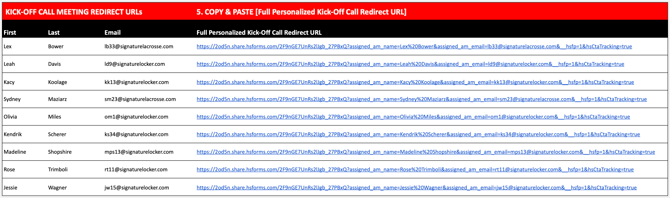
- If you name is not on the list add it to the list.
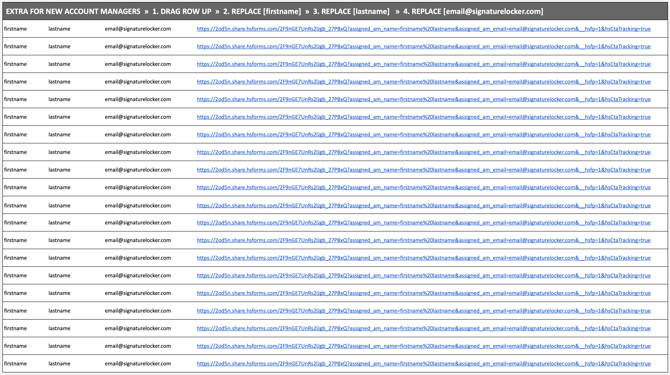
- If you name is not on the list add it to the list.
- Copy the link from the column "Full Personalized Kick-Off Call Redirect URL".
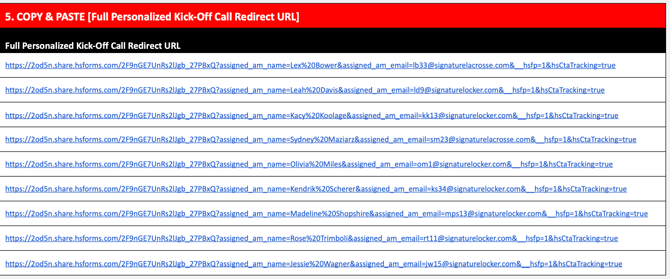
2. Add Your URL to the HubSpot Kick-Off Call Meeting
- Go to your Kick Off Call Meeting in HubSpot:

- Click on the Scheduling tab →
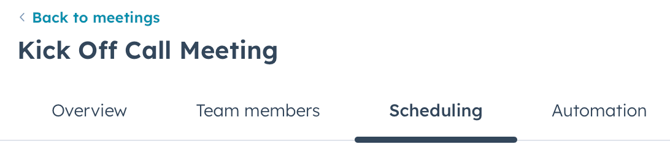
- Click the Confirmation sub-tab.

- Under “What should happen after a prospect or customer submits this form”, select: Redirect to another page
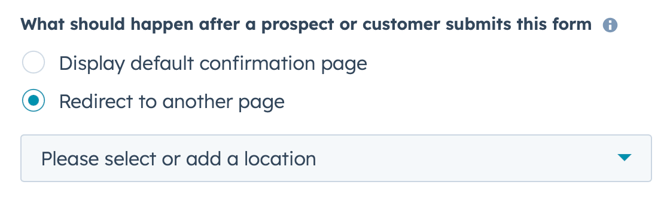
- In the redirect box, click +Add external link
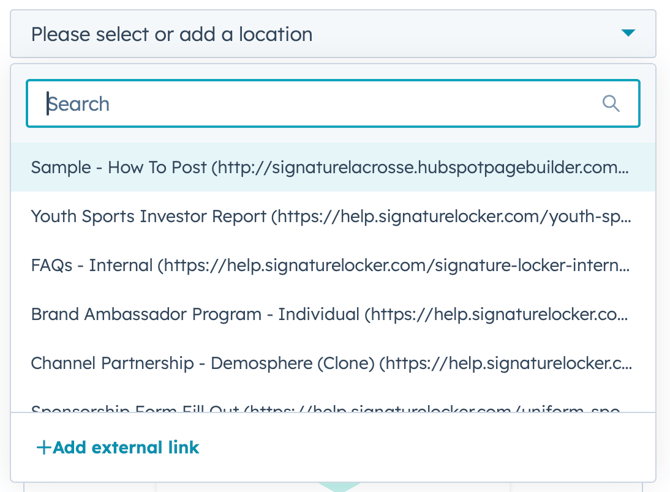
- Paste your full personalized URL (the long one you copied from the Google Sheet).
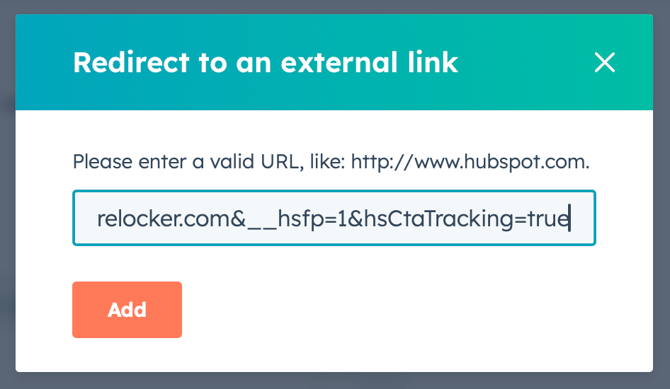
- Click Add → then click Save at the bottom.

3. What Happens Next (When a Client Books the Meeting)
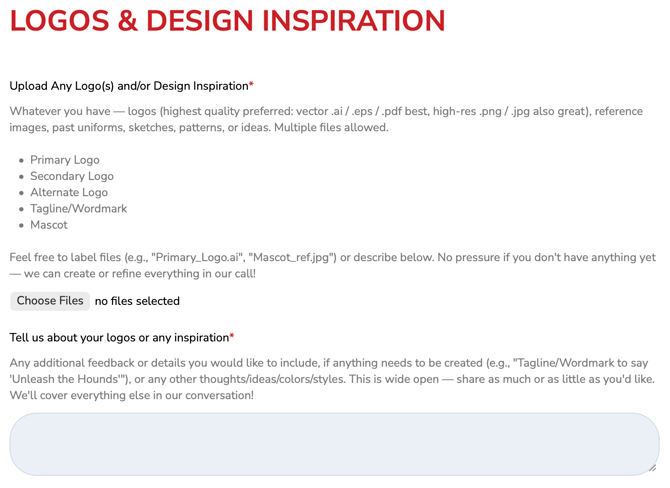
- When a client books your meeting, they are automatically redirected to the BOLD form.
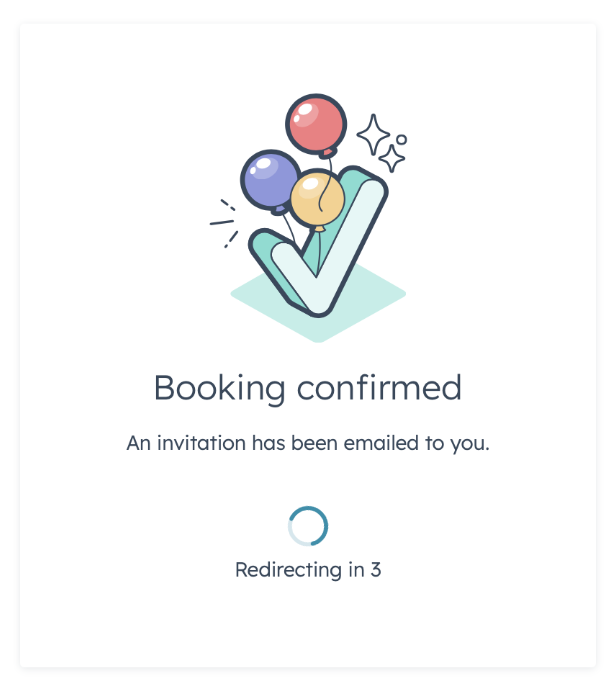
- Their basic info is pre-filled.

- They only need to upload logos and add any inspiration notes.
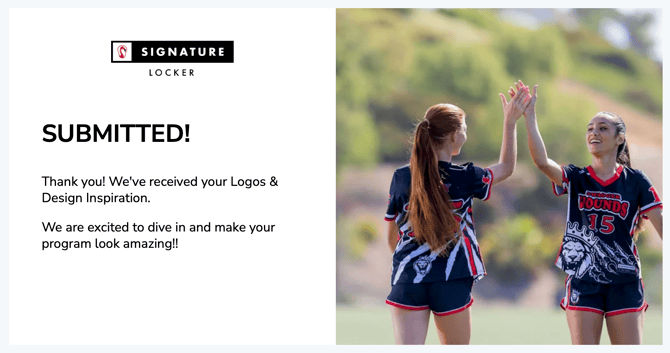
- When they submit the form → you will automatically receive an email.
4. The BOLD Form Submission Notification Email
You will receive an email with:
- From Name: Signature Automations
- From Address: automations@signaturelocker.com
Subject: New BOLD Requirements Submitted!
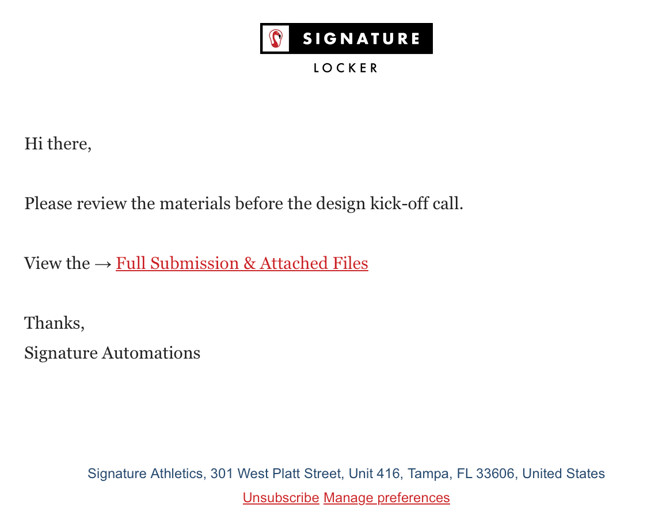
The email will include:
- Client’s name
- Direct link to view the full submission + all uploaded files
5. Where to Find All Submissions
You can view all submissions for this form → here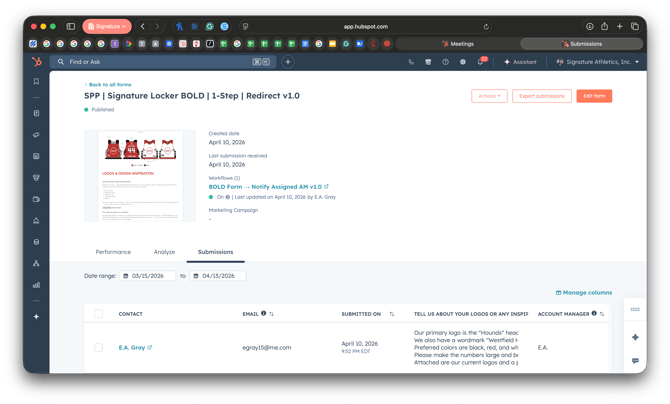
Bookmark this link — it shows every submission with:
- Client details
- Uploaded files (logos)
- What the client wrote in the inspiration box
- Date & time submitted
Quick Tips
- Use this in your main Kick-Off Call meeting(s).
- If the pre-filled fields don’t appear immediately, simply refresh the page once.
- Private/incognito mode sometimes requires a refresh.