
Last updated: May 20, 2026
0265|USV|23-2 — Uniform Package | OVERVIEW | STEP-BY-STEP
OVERVIEW
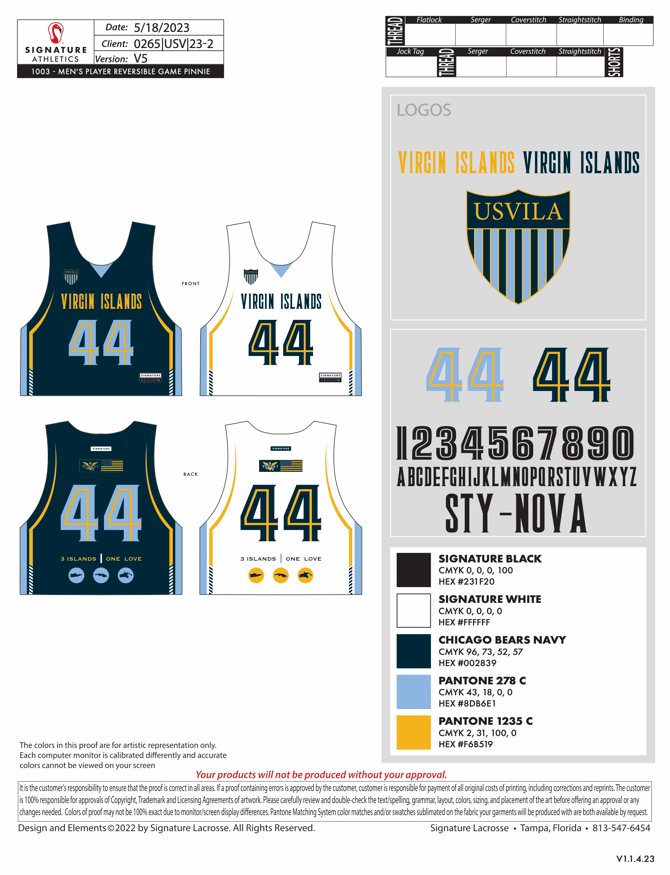
This video provides an instructional walkthrough for building and editing reversible jersey number graphics in Adobe Illustrator. It demonstrates how to use a reusable symbol and a layered numbering system so that jersey numbers can be updated quickly without rebuilding the artwork.
The video begins by explaining that the production folder includes an editable Nova font carried over from the original Illustrator mock-up. Because the font remains live and editable, designers can change numbers and names without recreating the type setup from scratch.
Using the default number 44 as an example, the author shows how to construct a complete system of number assets from 0 through 99. Each number is placed on its own grouped layer, and visibility is controlled by hiding and unhiding these groups to display specific digits or combinations. All numbers are aligned to a consistent center point (for example, coordinates 0,0) so that swapping one number for another does not shift the overall placement on the jersey.
The video also teaches how to create both dark and light jersey sides efficiently. First, the instructor builds the dark-side symbol and finalizes its structure. Then, they duplicate that symbol to create the light side, adjust the colors, and, when needed, convert the artwork to outlines. By dividing and separating the outlined shapes, the designer can isolate individual digits and tens, making it easier to build and manage every number combination required for production.
STEP-BY-STEP GUIDE
1. Start from the existing production file and reusable symbol 0:00
- Open the 2023 USVI project file and locate the reversible jersey in the final production folder.
- Use the provided Illustrator file and the client’s mockups as the base.
- Find the editable Nova font used in the file.
- Identify the symbol that will be reused across the jersey customization workflow.
- Drag that symbol into the master file you are building so it can be reused and modified later.
2. Build a number system with layered number ranges 1:36
- Use the widest default number as the base reference; in this example, 44 is the default because 4 is the widest digit.
- Create separate layers or groups for number ranges:
- 0–9
- 10–19
- 20–29
- continuing through 90–99
- Each layer should contain the correct number assets for that range.
- To change a jersey number, hide the current range and unhide the correct one.
- Example:
- Hide 40–49 and show 0–9 to display a single-digit number.
- Hide 0–9 and show 10–19 to display a two-digit number like 15.
3. Keep all numbers centered consistently 2:31
- Make sure every number is aligned to the same center point.
- The numbers should be centered around the same anchor so switching between values does not shift the layout.
- The transcript notes that the numbers were centered using a consistent reference point, such as
0,0or the middle gap between digits. - This keeps the jersey number visually stable when swapping between single- and double-digit values.
4. Build the dark-side version first 3:40
- Start by constructing the dark version of the number set.
- Once the dark side is complete, duplicate it to create the light side.
- This saves time because the structure is already built.
- For the light version, you mainly need to change the color and remove the dark duplicate.
5. Convert the duplicated version into the secondary colorway 4:33
- Turn on all relevant layers so you can edit the duplicated number.
- Select the parts that need to change color.
- Keep the gold the same and change only the blue elements to navy.
- This creates the secondary color version without rebuilding the artwork from scratch.
- After that, hide the extra version again and return to the primary number setup.
6. Recreate the light side by swapping the active number layer 5:37
- Turn off the extra layers.
- Turn on the correct number layer for the light side.
- In the example, the primary number is 0 and the active display is 44.
- This produces the light-side version using the same system.
- The main idea is that the dark side requires more setup, while the light side is easier to duplicate and adjust.
7. Duplicate the master or rebuild the structure in the lower half 6:47
- Make a copy of the master file if needed.
- You can either duplicate the existing setup or recreate the structure in the bottom half.
- The workflow depends on having a base number structure first, then building the extracted number pieces from it.
8. Create outlines and divide the artwork into editable pieces 7:01
- Start with the base number, such as 44.
- Convert the artwork to outlines.
- Bring the outlined artwork to the back if needed.
- Use divide/cut operations to separate the number shapes into individual pieces.
- This lets you isolate each digit and build a reusable number library.
9. Extract individual digits from the outlined number 8:07
- Break apart the outlined number using divide.
- Remove unwanted pieces after the split.
- Repeat the process for each digit.
- If a grouped object appears, ungroup it first.
- Continue extracting until you have clean standalone digits like 0, 1, 2, 6, 9, etc.
10. Build the two-digit combinations using spacing and alignment 12:45
- Once the individual digits are extracted, build the two-digit versions.
- Use the single-digit number as the alignment reference.
- Center the second digit based on the gap between the two numbers.
- The transcript notes that many combinations were aligned visually using the gap between digits.
- This method was used to create combinations like 21, 22, 23, and so on.
11. Duplicate the completed combinations across all number ranges 14:50
- After one set of combinations is built, duplicate it for the rest of the number ranges.
- Create the full set for:
- 0–9
- 10–19
- 20–29
- up through 99
- Replace the dark number layers with the completed custom number sets.
- Organize them into layers so they can be swapped quickly in production.
12. Why this workaround is necessary 15:20
- A normal stroke or outline approach does not work correctly for these numbers.
- If you simply outline the text, the stroke appears on both the inside and outside.
- Even sending it to the back does not remove the unwanted outer outline.
- This custom divide-and-rebuild method avoids that problem and produces the correct jersey-number look.
✅ COMPLETED