
Last Updated: May 8, 2026
 |
 |
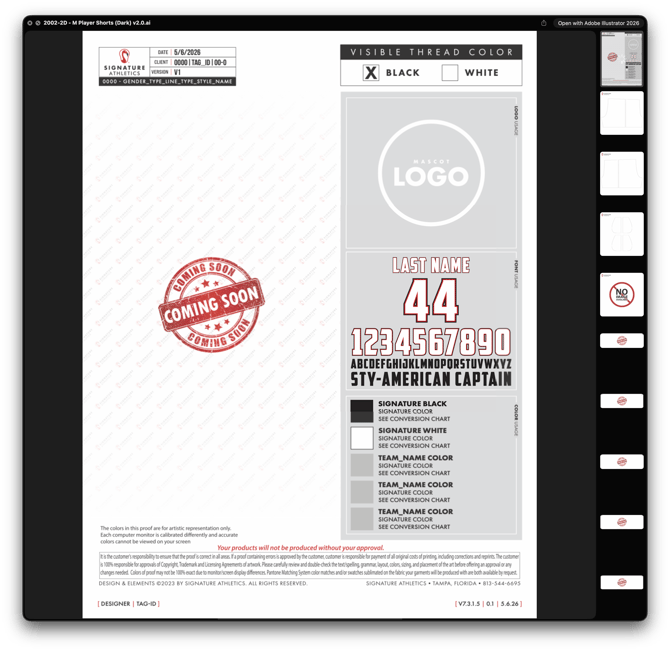
| BEFORE |
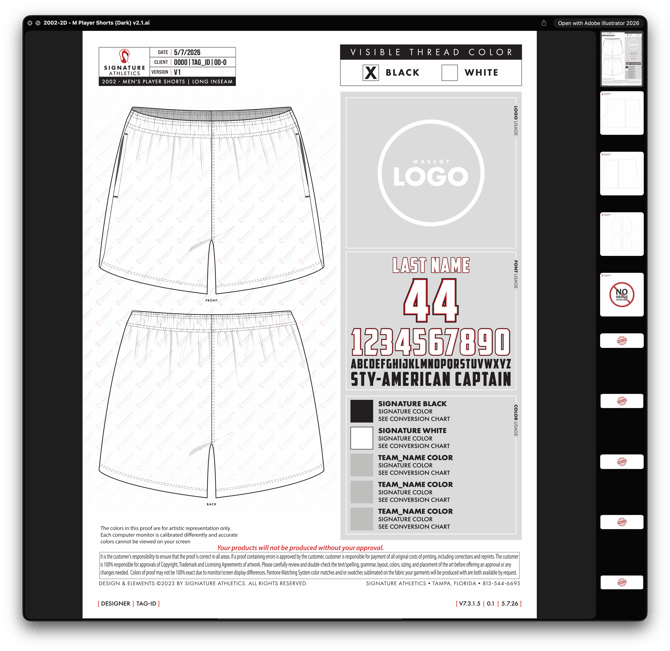
AFTER |
PURPOSE
This training introduces the complete 2D Technical Sketch workflow for Bottoms (Shorts and Skirts).
You will learn how the general 2D master process applies to bottom garments and how to adjust each step for this specific category.
By the end of this training, you should be able to:
-
Apply base color blocking correctly for Shorts and Skirts
-
Build accurate panel constructions for a variety of bottom silhouettes
-
Add essential trim details, including waistbands, bindings, and other finishings
-
Represent stitching in a way that is clear, consistent, and production-ready
-
Prepare final 2D flats that are ready for client-facing presentations and smooth handoff to the 1Ds team
The focus is on creating clean, consistent, and production-accurate 2D flats for Shorts and Skirts that reflect Locker’s standards and support efficient downstream work.
TOTAL TRAINING TIME
Approximately 18–22 minutes of training time, designed for quick reference & fast onboarding.
MASTER MIGRATION STEP UP & 3D HANDOFF
OVERVIEW
In this section, you will see the shorts-specific example of how to recreate 2D artwork from the 2002 technical sketches inside the current graphic system. The goal is to translate the legacy sketch into a clean, organized 2D file that matches our master standards and is ready for reuse.
To do this, you will:
-
Start by unlocking the overlay outlines so you can work directly with the reference line art.
-
Bring the front and base technical sketch onto your new master artboard.
-
Confirm that the overall garment height is set to 35 units.
- Set your linework with two main stroke weights: a heavier stroke (around 10) for the outer contour and a lighter stroke (around 6) for interior details. This creates clear hierarchy in the line art and keeps the silhouette easy to read.
Next, you will separate the shorts into clearly labeled layers. A standard structure includes:
-
2D | Line Art | Front
-
2D | Line Art | Front | Threads
-
2D | Line Art | Front | Shadows
-
Base Colors [ Example of Front Side ]
- 2D | Panel | Front | Waistband
- 2D | Panel | Back | Lining
- 2D | Panel | Back | Lining | R
- 2D | Panel | Back | Lining | L
- 2D | Panel | Back | Lining | Base
- 2D | Panel | Front | Bottom Binding
- 2D | Panel | Back
- 2D | Panel | Back | R — [ Create Clipping Mask ]
- 2D | Panel | Back | L — [ Create Clipping Mask ]
- 2D | Panels | Front
- 2D | Panel | Front | R — [ Create Clipping Mask ]
- 2D | Panel | Front | L — [ Create Clipping Mask ]
- 2D | Panel | Front | Base | 1 — [ Create Clipping Mask ]
- 2D | Panel | Front | Base | 2 — [ Create Clipping Mask ]
- 2D | Panel | Front | Base | 3 — [ Create Clipping Mask ]
MASTER USED → 2002-2D - M Player Shorts (Dark) v2.1
For the front view, you will also create three base layers (Base 1, Base 2, and Base 3). Each base is used to control how shadows and other effects behave in different garment zones, which gives you flexibility when you add details or adjust cut lines.
After the structure is in place, you will:
-
Add or update the bottom binding detail so it matches the reference.
-
Quality-check the black and white versions to ensure that layers, strokes, and clipping masks behave correctly in both colorways.
-
Save your work and replace the older file in the v4 live folder so the newest, production-ready 2D is available to the rest of the team.
STEP-BY-STEP GUIDE
1. Start from the existing shorts reference and technical sketch 0:00
-
Open the existing 2002 shorts file as the reference.
-
Go to the overlay and unlock it to access the line items.
-
Pull the needed technical sketch elements from the symbol layer.
-
For the master 2D setup, only the front and base are needed at first.
-
Paste the sketches into the new board/master file.
-
Expect some style mismatches between artboards and plan to touch them up if needed.
2. Rebuild the shorts with the correct stroke and height settings 2:06
-
Make sure the shorts are set to the correct height: 35.
-
Check the stroke weight used for the line art.
-
Default stroke weight is usually 6.
-
If the outer edge needs more emphasis, increase the exterior stroke to 10 while keeping inner lines at 6.
-
Use the 2002 reference to compare how the line thickness should look.
3. Organize the back 2D into clear layer groups 4:21
-
On the back side, keep the structure organized by layer.
-
Main groups include:
-
Line art
-
Shadow
-
Threads
-
-
Inside threads, label subparts clearly:
-
waistband
-
waistband top
-
waistband bottom
-
middle
-
bottom threads
-
-
This back setup becomes the reusable master for future shorts.
4. Use clipping masks for shadow effects 5:28
-
The shadow effect can extend outside the line art if left unmasked.
-
Create clipping masks so shadows stay cleanly inside the shape.
-
This prevents overlap and keeps the 2D looking polished.
-
Apply the same approach wherever shadow effects need to stay contained.
5. Build the front 2D with more detailed sublayers 6:55
-
The front is more detailed than the back because it includes:
-
pockets
-
front waistband
-
back waistband
-
lining
-
back panel details
-
-
Break the front into separate labeled layers so each piece can be edited independently.
-
Keep left/right pieces separated where needed.
-
This makes the file easier to reuse and adjust later.
6. Create multiple base layers for flexibility 10:02
-
Set up three base layers:
-
Base 1: just under the waistband
-
Base 2: the full front section
-
Base 3: the full garment
-
-
These different bases allow different effects and cut lines.
-
Example: Base 1 is used for shadows so the shadow can stop at a specific cut line.
-
This structure gives flexibility when building or editing future 2Ds.
7. Finish the technical sketch and add missing clipping masks 11:26
-
Before entering the artwork into the symbol, make sure all needed clipping masks are created.
-
The lining may also need a clipping mask.
-
Once the technical sketches are complete and cleaned up, they are ready to be inserted into the symbol structure.
8. Add the missing bottom binding detail 14:02
-
The only missing piece in the walkthrough was the bottom binding.
-
Add the bottom binding by taking the bottom thread element and bringing it down into place.
-
Do this for both sides as needed.
-
This detail is important before finalizing the front and back symbols.
9. Adjust thread thickness and use graphic styles to update consistently 29:48
-
If the thread looks too thin, increase its thickness slightly.
-
In the example, the thread was changed to a thicker setting to look more balanced.
-
One benefit of graphic styles is that changing one style updates all linked instances.
-
Use this to keep the whole 2D consistent.
10. Paste the rebuilt artwork into the front and back symbols 31:26
-
Go back into the front symbol and paste the rebuilt artwork.
-
Set the artwork position back to 0,0 so it aligns correctly.
-
Delete any duplicated styles or extra elements that came in during paste.
-
Repeat the same process for the back symbol.
-
Also paste the shadow and thread layers into their correct symbol locations.
11. Verify the final black and white versions 37:44
-
Turn on the thread color in the black version and confirm it looks correct.
-
Then move to the white version.
-
Unlock the editable version and remove outlines if needed.
-
Move thread elements into the correct layer structure.
-
Expand or finalize the artwork where necessary.
-
Do a quick QC check to make sure the clipping masks and layer structure still work.
12. Save, update the date, and finalize the 2D 49:47
-
Once everything looks correct, save the file.
-
Update the date to the current day.
-
Confirm the 2D is complete.
-
This is the final deliverable for the 2D stage.
13. Replace the old file in the v4 folder and hand off the work 51:14
-
Move the completed 2D into the v4 folder.
-
Replace the older file with the new version.
-
Think of this as passing the file from one hand to the next.
-
The 3Ds and 2Ds are now complete, and the next phase is the 1Ds.
14. Update the tracker and notify the next person in Slack 53:21
-
After the 2Ds are done, update the tracker.
-
Post in Slack to notify the next person that the 2Ds are complete and the 1Ds are ready.
-
Include the relevant project name and version.
-
If needed, attach a screenshot showing the updated status.
-
The workflow ends with the 2D deliverable ready for the next phase.