
Last updated: May 21, 2024
0. LOGOS | 1. BRAND | 2. STORE | 3. UNIFORMS | 4. OFF-MENU | 5. HATS | 6. BAGS
0. VECTORIZED LOGOS
1. BRAND GUIDELINES
2. TEAM STORE
3. UNIFORMS
HOW TO QC UNIFORMS AFTER THEY HAVE BEEN GRADED.
QUALITY CHECK CHECKLIST
- Colors - Ensure there is a material difference in colors (for example, black on black)
- Seams - Don’t go within 1” of a seam.
- Objects in design - never make an object smaller than 0.25” that needs to be legible.
- Confirm that there is not more than one clipping mask in the art-file
- Double-check that all layers are ON
- Any variable data needs to be a solid color with no customization
- Single-layer logo and design // merge through nesting
- The name Place holder is LASTNAME; if no name is required, do not include
- The only approved number is 44
- Confirm smart layers are connected, i.e., A number changes on all locations.
- Confirm that any necessary fonts are in the shared font folder
- Verify product is what the client is expecting (correct Style #)
- Double check brand placements match the approved art design (example - if a
- Review & Upload Final Graded files to Google Drive using SKU Sheet as File Name
- *New for 2026* Double Check the SKU Sheet and compare what is in the Ziflow Proof to the Original Sku Sheet.
- *New for 2026* Have one last look at all spelling in branding provided by team and double check spelling against Sales Program ID Sheet (example - if YOU KNOW a team's name is "New Canaan", but their provided logo says "New Cannan" Check the Sales Program ID Sheet for official name and flag as an error with the account manager.
STEPS
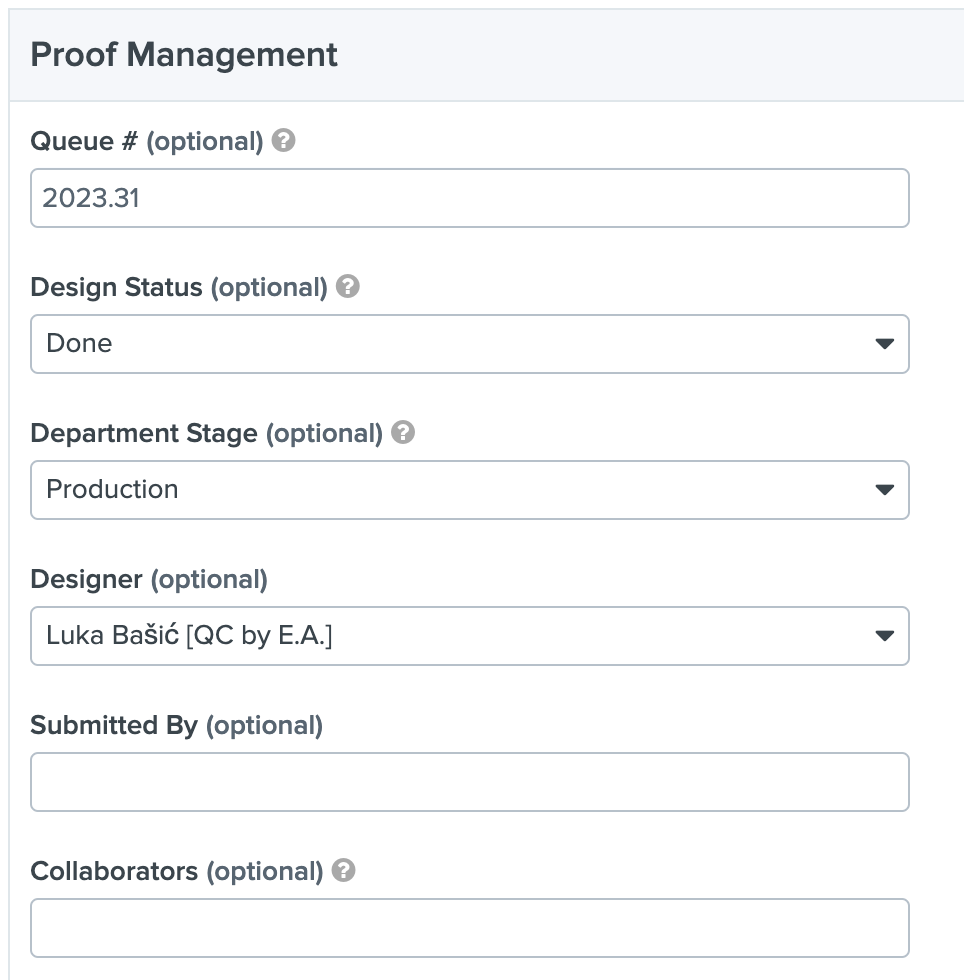
- Review Submitted Proof via Ziflow
- Go to the Production Folder
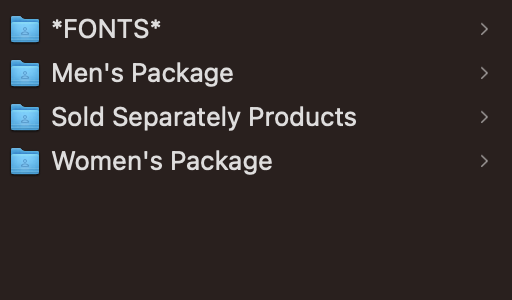
- Change the Folder Name from P|0000|23-0|XXX|V1-0 to the Package name on the SKU Sheet
- If there are Mulpitpe Packages or Sold Separately Products, change the P|0000|23-0|XXX|V1-0 to the Design Season 0000|TAG_ID|23-0
- Open the Graded files.
- Check the number that they all changed
- Numbers Layer
- Move the Number layer to the top
- Close all the layers and lock them, except for the editing layers.
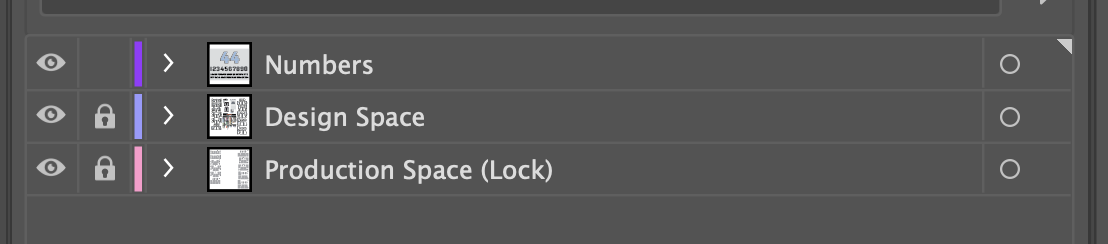
- Name & Numbers Layer
- Move the Number layer to the top
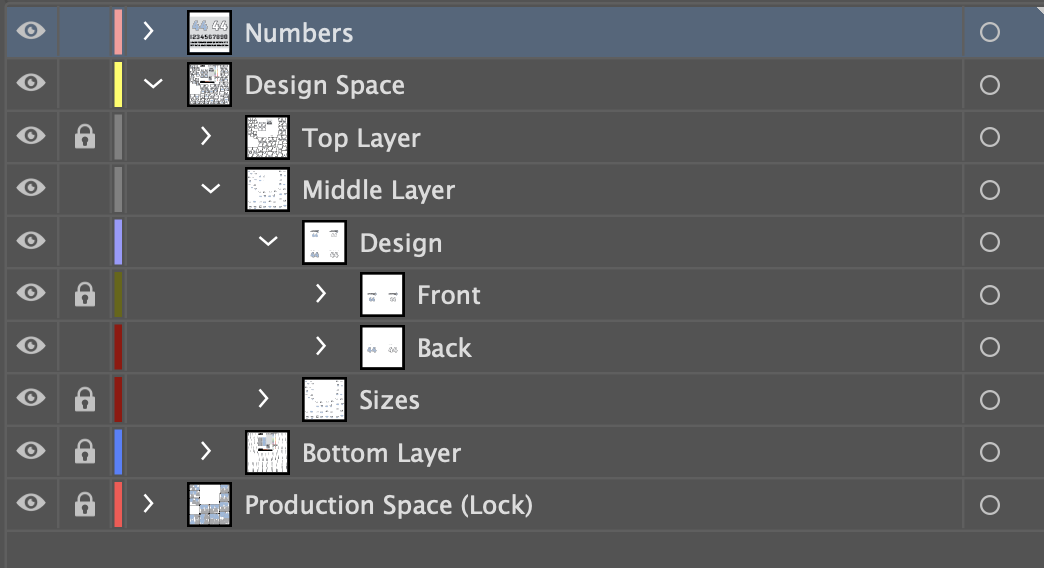
- Close all the layers and lock them, except for the editing layers.
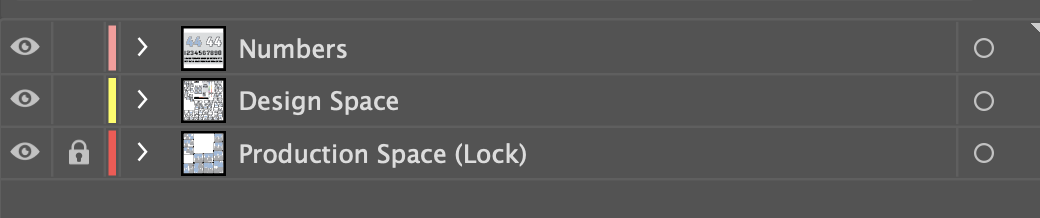
- Save
- Export as PDF into the P|0000|23-0|XXX|V1-0 folder.
- If there aren't any Packages or Sold Separately Products, delete the other folders.
- If there are Mulpitpe Packages or Sold Separately Products, Export as PDF into the Design Season 0000|TAG_ID|23-0 Folder.
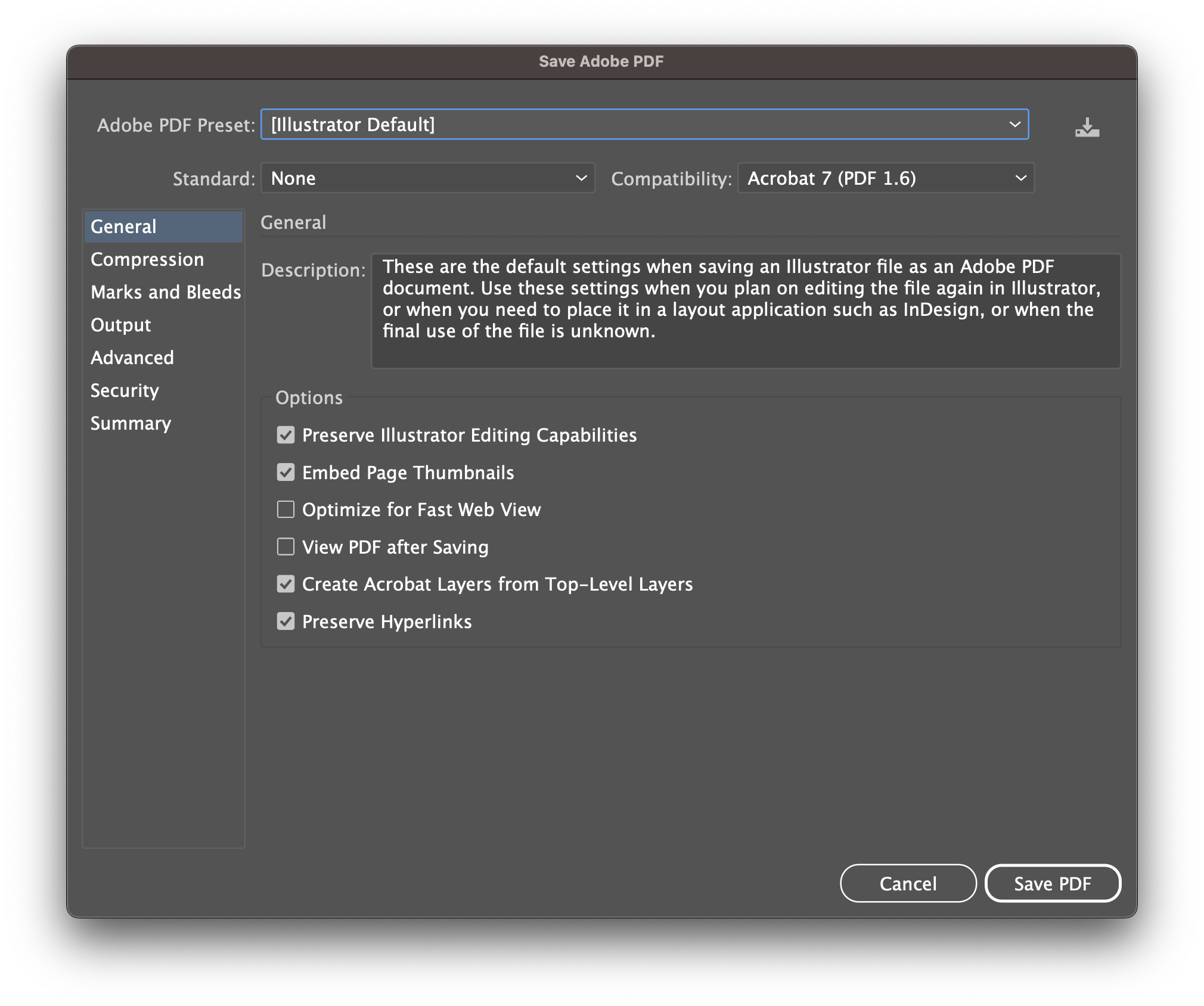
- If there aren't any Packages or Sold Separately Products, delete the other folders.
- Verify all fonts are in the Font Folder
- You can find all the Signa Fonts under *SIGNATURE TEMPLATES* > *FONTS*
- Handoff to Production
- Complete you decision via Ziflow
Nice Job :)