
Last updated: March 02, 2026
Purpose
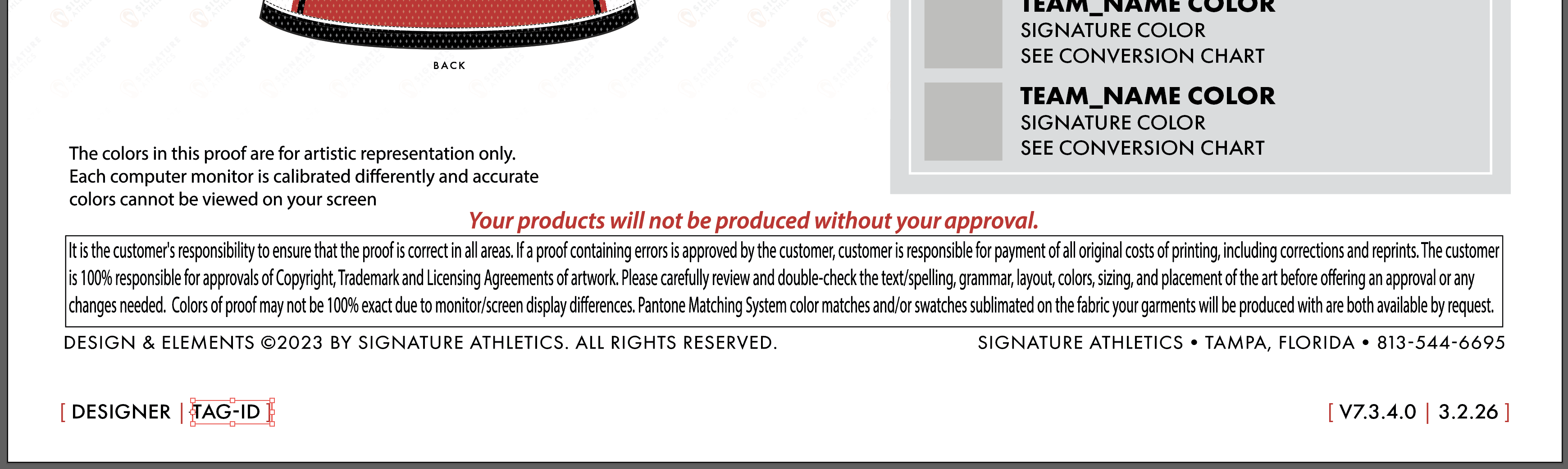
To standardize the use of a visible Designer Tag ID symbol placed directly on the .ai artboard in client-facing MASTERS proofs. This provides an immediate visual indicator of the last designer who worked on the file (especially helpful for quick checks like font usage/grading), improves accountability, and complements Ziflow activity logs (which track full history but require scrolling/searching).
Scope
Applies to all designers working in Adobe Illustrator on MASTERS .ai master files that become client-facing proofs. Covers symbol placement, updating during revisions, locking rules, quality check verification, and best practices for speed.
Definitions
- TAG-ID Symbol: An unlocked Illustrator symbol instance placed on the artboard (typically bottom-left area) that displays the designer's name (or initials/ID).
- MASTERS .ai File: The working Illustrator file containing the master design/proof layers.
- Client-Facing Proof: Any version sent to or intended for client review/approval (via Ziflow or otherwise).
- Unlocked Symbol: Can be directly selected and replaced/swapped with another symbol instance (e.g., your own name) without unlocking the entire layer or group.
Responsibilities
- Designers:
- Place or update the TAG-ID symbol with their own name/symbol before submitting/sending any client-facing version.
- Only the last designer who touches a client-facing proof updates the tag.
- Keep the symbol unlocked for fast replacement.
- Quality Control (QC) Team:
- Visually check the TAG-ID symbol on the artboard during review.
- Cross-reference with Ziflow activity log if deeper history is needed (e.g., multiple designers involved).
- Flag proofs missing an updated tag or showing an outdated designer for rework.
- Team Leads:
- Monitor adoption and provide feedback on placement/speed.
- Resolve symbol library issues (e.g., missing names).
- All Staff:
- If questions arise about prior changes, reference Ziflow activity log first, then contact the designer shown in the current TAG-ID.
Materials & Tools Required
- Adobe Illustrator (current version used by team)
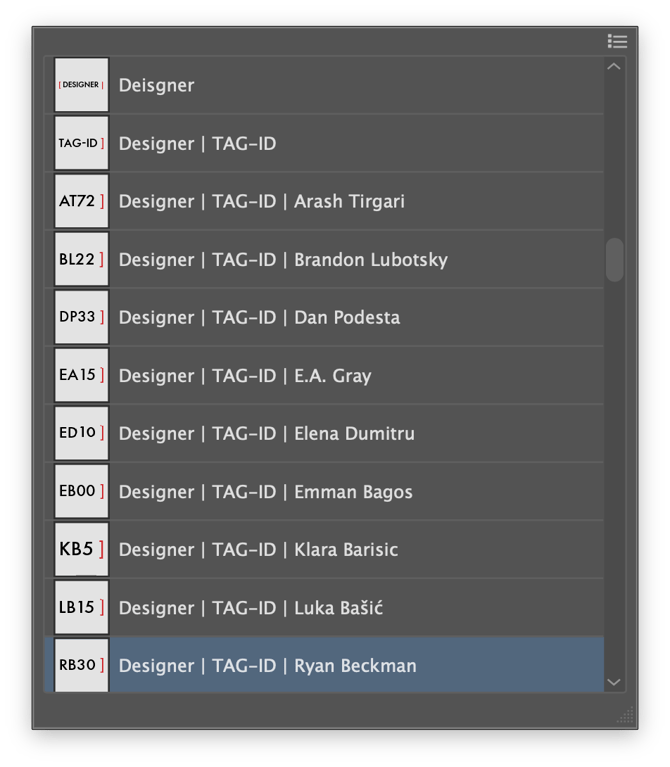
- Access to shared Symbol Library containing all designer name symbols (e.g., "Designer | ID | ED10 | Elena Dumitru", "Designer | ID | KB5 | Klara Barisic", etc.)
- MASTERS .ai template/master file with pre-placed (but unlocked) TAG-ID symbol area
- Ziflow for proof submission and activity tracking
Procedure
 |
|
Step 1: Opening / Receiving the File
- Open the relevant MASTERS .ai file in Illustrator.
- Locate the existing TAG-ID symbol (typically bottom-left corner of the main artboard).
- It should already be present from the original/template setup.
- Confirm it is unlocked (selectable directly — no need to unlock layers).
Step 2: Updating the TAG-ID (When Working on a Client-Facing Version)
- Only update if this is a client-facing proof/version and you are making meaningful changes/revisions.
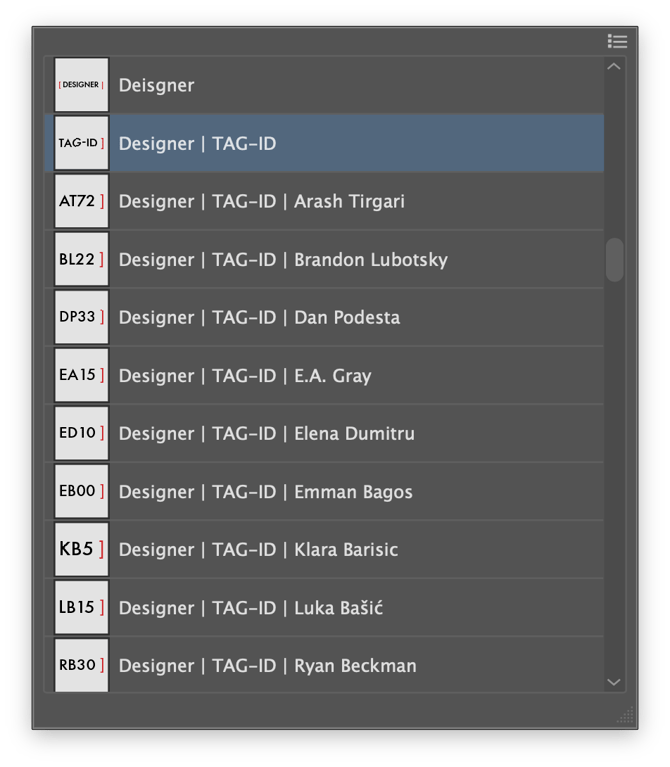
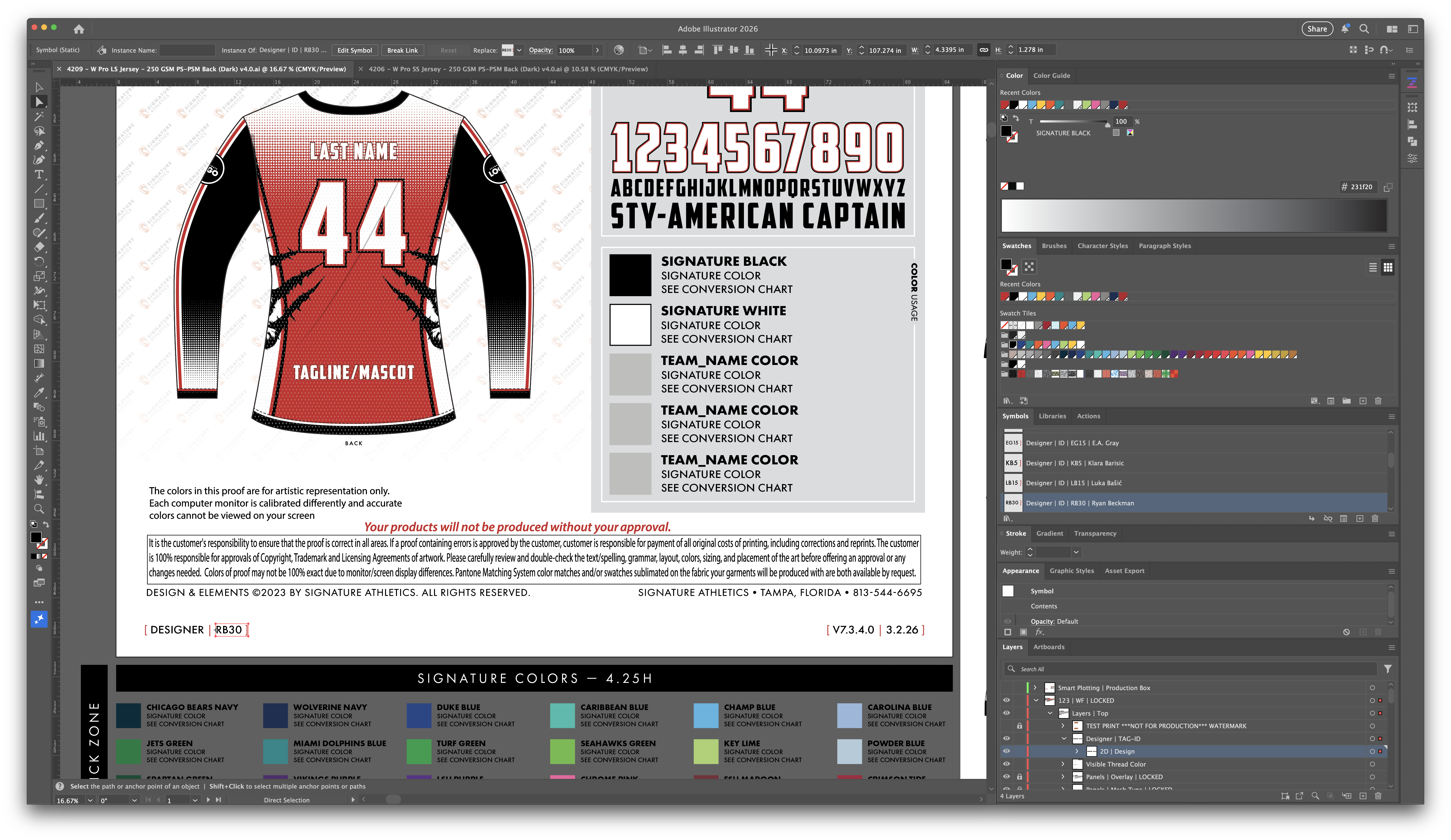
- Select the existing TAG-ID symbol instance directly on the artboard (quick click).
- Replace it with your own designer symbol:
- Option A (fastest): Use the Symbols panel → search for your name (e.g., "TAG-ID_[YourName]") → drag or replace the instance.
- Option B: If search is needed, quickly type "TAG-ID" in the Layers panel search to filter.
- Position remains bottom-left (do not move unless absolutely necessary for layout).
- Save the file.
- Proceed to export/upload to Ziflow as the new client-facing version.
Rule: Do not update the tag for internal-only tweaks or non-client-facing drafts. Only update when the version becomes (or remains) client-visible.
Step 3: Handling Multiple Designers / Revisions
- The tag always reflects the last designer who worked on a client-facing proof.
- If you receive a proof for revision:
- Check the current TAG-ID → that is your primary contact for questions about the current state.
- After completing revisions → replace the symbol with your own before sending back/submitting.
- Historical designers remain visible in Ziflow activity logs (who uploaded/changed what and when).
Step 4: Quality Checks (QC / Grading)
- Open the proof in Illustrator or review the delivered version.
- Immediately look at the bottom-left TAG-ID symbol → note the designer name.
- Use this for quick context (e.g., "This font issue is likely from [Designer Name] → reach out directly").
- If tag is missing, wrong, or outdated:
- Flag for rework: "Please update TAG-ID to reflect last designer."
- Cross-check Ziflow activity for full history if needed.
- Proceed with standard QC (visual, font usage, specs, etc.).
Step 5: Troubleshooting
- Symbol missing/not appearing: Check Symbols panel; re-place from library if deleted.
- Symbol is locked: Unlock the instance (Object → Unlock All, or check Layers panel) — but only the TAG-ID should be unlocked; keep other critical elements locked.
- Name not in library: Notify lead/IT to add it.
- Accidentally moved tag: Snap back to bottom-left; keep consistent placement.
- Speed concern: Practice the click → search → replace flow; it should take <5 seconds.
Best Practices for Speed
- Keep TAG-ID unlocked and directly selectable.
- Use consistent naming in Symbols panel (prefix "TAG-ID_") for fast search.
- Avoid scrolling through long symbol lists — rely on search.
- Do not nest the TAG-ID inside locked groups.
Monitoring & Compliance
- Spot-check 10–20% of client-facing proofs weekly for correct TAG-ID.
- Track feedback from grading sessions (font issues, etc.) — measure if tag reduces lookup time.
- Update symbol library as new designers join.